
Thinking of buying a new laptop in the Diwali sale because yours takes three minutes to boot? Try this first. Most laptops slow down because of startup apps, a nearly full drive and too many browser tabs, and you can speed up slow laptop problems like these for free in about 20 minutes using settings already built in.
The fixes below come from Microsoft’s and Apple’s own support pages, not “PC booster” apps. And if your laptop still runs Windows 10, there’s a bigger issue than speed, which section 4 explains.
⚡ Key takeaways
- Start with three free fixes: disable startup apps in Task Manager, free up space with Storage Sense, and turn on Chrome’s Memory Saver.
- Restarting properly (Start > Power > Restart) clears more than shutting the lid. Microsoft lists it as a fix.
- Skip paid “cleaner” and “RAM booster” apps. Windows and macOS already have the tools.
- Windows 10 support ended on 14 October 2025, so an old Windows 10 laptop no longer gets regular security updates.
- If it’s still slow after all 10 fixes, an older laptop with a hard disk (HDD) may need an SSD upgrade, not a new laptop.
Why Your Laptop Got Slow
A laptop doesn’t get slower because it’s “old” in some vague way. It gets slower because more things are running and less room is left.
Every app you install wants to start with Windows. Every Chrome tab holds memory. And a drive that’s almost full makes everything from updates to file saves crawl.
Microsoft’s own performance guide lists 12 things to try and says several factors can slow a PC, so it’s worth doing all of them rather than one. Apple’s guide for slow Macs points to the same culprits: low free space on the startup disk and apps using more memory than is available.
Indian conditions add their own twist. Many of us use one laptop for office work, kids’ online classes and family photos, so it fills up faster than a single-user machine.

The 3 Free Fixes That Help Most
1. Disable startup apps
Press Ctrl + Shift + Esc to open Task Manager, go to Startup apps, and disable anything you don’t need the moment Windows starts. Messaging apps, game launchers and printer utilities are common culprits. Microsoft lists this as one of its 12 fixes.
On a Mac, Apple’s guide recommends quitting apps you aren’t using and checking memory use in Activity Monitor.
2. Free up disk space
On Windows, turn on Storage Sense under Settings > System > Storage. Microsoft explains that it cleans temporary files and old Recycle Bin items, and can make unopened OneDrive files online-only without deleting them. It works on the system drive (usually C:) and is off by default.
On a Mac, go to Apple menu > System Settings > General > Storage for Apple’s recommendations.
3. Turn on Chrome Memory Saver
Chrome is often the heaviest thing running. Google’s help page says Memory Saver deactivates tabs you aren’t using and reloads them when you return. Go to Chrome menu > Settings > Performance and turn on Memory Saver. “Balanced” is Google’s recommended mode.
💡 Pro tip
Keep sites you need live, like a Google Meet class or a UPI payment page, in Memory Saver’s “Always keep these sites active” list. Pages with audio, video, screen sharing or downloads stay active anyway.
 Also readUpdate Chrome Now: Version 156 Fixes 353 Security Flaws
7 More Fixes from Microsoft’s Checklist
These take a few minutes each. Here they are with our honest take on how much each one helps.
| Fix | Where to find it (Windows 11) | Our take |
|---|---|---|
| Install updates and optional driver updates | Settings > Windows Update > Advanced options | Do it first; fixes bugs that cause slowdowns |
| Run a malware scan | Windows Security > Virus & threat protection > Quick scan | Free and built in; no need for paid antivirus to start |
| Uninstall unused apps | Settings > Apps > Installed apps | Big win on laptops with pre-installed trial software |
| Turn off background apps | App’s Advanced options > Background app permissions > Never | Helps on 4 GB and 8 GB RAM laptops |
| Adjust visual effects | Search “Adjust the appearance and performance of Windows” | Small gain; worth it on older laptops |
| Optimize drives | Search “Defragment and Optimize Drives” | Windows handles it automatically; run once if unsure |
| Close unused apps and restart | Start > Power > Restart | Free and underrated |
Microsoft also suggests setting Power mode to Best performance under Settings > System > Power & battery. On a laptop, it warns this uses more power and drains the battery faster. We’d use it only while plugged in. Our guide to making your battery last longer covers the trade-off.
The Catch: Old Windows, Booster Apps and Hard Disks
⚠️ Watch out
Windows 10 support ended on 14 October 2025, per Microsoft. If your laptop still runs Windows 10, it no longer gets regular security updates. Check Settings > Windows Update to see if your laptop can move to Windows 11 for free.
Second, skip “PC booster”, “RAM cleaner” and “registry cleaner” apps. Microsoft’s own list of 12 fixes doesn’t include any of them, and each one is yet another app running in the background. The built-in tools above do the real work.
Third, the hardware. If your laptop is five or more years old and has a spinning hard disk (HDD), no setting will make it feel new.
Open Task Manager > Performance and click your disk to see if it says HDD or SSD. If it’s HDD and stuck at 100% often, swapping in an SSD is usually far cheaper than a new laptop. That one costs money, so get a quote from an authorised service centre before you buy anything.
Before any hardware change, back up your files. If you’ve ever lost files, our guide to recovering deleted files on a PC shows how Windows File Recovery and File History work.
20-Minute Checklist to Speed Up Slow Laptop
- Save your work, then restart (not shut down) from Start > Power > Restart.
- Run Windows Update and install optional driver updates.
- Open Task Manager (Ctrl + Shift + Esc) and disable unneeded Startup apps.
- Turn on Storage Sense and clear temporary files under Settings > System > Storage.
- Uninstall apps and trial software you don’t use.
- Turn on Memory Saver in Chrome (Settings > Performance).
- Run a Quick scan in Windows Security.
- Turn off notifications you don’t need under Settings > System > Notifications.
- Set visual effects to best performance if the laptop is older.
- Restart once more and check Task Manager > Processes for anything still eating CPU or memory.
On a Mac, the short version from Apple: free up startup disk space, check memory in Activity Monitor, quit apps you aren’t using and run Disk Utility if you suspect disk problems.
Our Verdict: Fix It or Replace It?
✅ Our verdict
Do all 10 fixes before you spend a rupee. Most slow laptops are slow because of startup apps, a full drive and a browser with 40 tabs. If it’s still slow and runs on an HDD, upgrade to an SSD. Replace the laptop only if it can’t run a supported version of Windows or macOS.
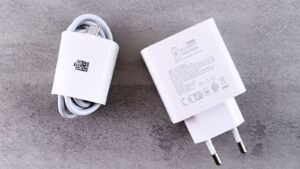
Honestly, the Diwali sale makes it tempting to just buy new. But a ₹40,000 laptop with the same habits (every app at startup, no storage cleanup) will feel slow in two years too. And if you do buy one, pair it with a proper charger: our fake charger check shows how to verify one with the BIS Care app.
Frequently Asked Questions
How can I speed up slow laptop for free?
Disable startup apps in Task Manager, free up space with Storage Sense, turn on Chrome’s Memory Saver, install updates, uninstall unused apps and restart. These are all built into Windows and Chrome.
Why is my laptop so slow suddenly?
Common causes are a pending Windows update, a nearly full drive, too many startup or background apps, or malware. Check Task Manager’s Processes tab to see what’s using the CPU, memory or disk.
Do RAM cleaner apps work?
They aren’t part of Microsoft’s or Apple’s advice, and many add their own background load. Use the built-in tools instead.
Is it worth upgrading to an SSD?
On an older laptop with a hard disk (HDD), usually yes; in our view it’s the biggest single upgrade for the money. Check whether your laptop has HDD or SSD in Task Manager > Performance.
Should I still use Windows 10?
Microsoft ended Windows 10 support on 14 October 2025, so it no longer gets regular security updates. Check Windows Update to see whether your laptop can upgrade to Windows 11.
The Bottom Line
You can speed up slow laptop problems for free in most cases: restart, cut startup apps, clear storage and tame Chrome. Do the 20-minute checklist tonight, then decide on an SSD or a new laptop only if it’s still slow. Your wallet will thank you during the sale.
Keep reading
 Read nextStop Wasting Battery Life: 9 Free Settings for Android and iPhone
 Read nextRecover Deleted Files on a Windows PC: 6 Free Ways, in OrderRead nextUpdate Chrome Now: Version 156 Fixes 353 Security Flaws
Sources
- Microsoft Support: Tips to improve PC performance in Windows (12 fixes, Windows 10 end of support)
- Microsoft Support: Manage drive space with Storage Sense
- Apple Support: If your Mac runs slowly
- Google Chrome Help: Memory Saver