Your smartphone knows more about you than your closest friends do. It tracks where you go, what you buy, who you call, and how long you sleep. That’s not science fiction — that’s the default setup on most devices sold today.
The good news? The best smartphone privacy settings are already built into your phone. You just need to know where to find them — and which ones to turn on first.
In this article, you’ll learn:
- Which permissions are leaking your data right now
- The exact settings to change on both iPhone and Android
- How to stop apps from tracking your location in the background
- Simple steps to lock down your ad profile and browsing data
- Quick wins that take less than 10 minutes to complete
Security researchers at organizations like the Electronic Frontier Foundation (EFF) and Mozilla consistently highlight that most users never adjust their default privacy settings — which are often configured for convenience, not protection. Let’s change that today.
The Smartphone Privacy Problem Nobody Talks About
Before diving into the settings themselves, it helps to understand what you’re actually protecting yourself against. Most smartphone privacy threats don’t come from dramatic hacks. They come from quiet, legal data collection happening in the background every single day.
What Apps Actually Collect
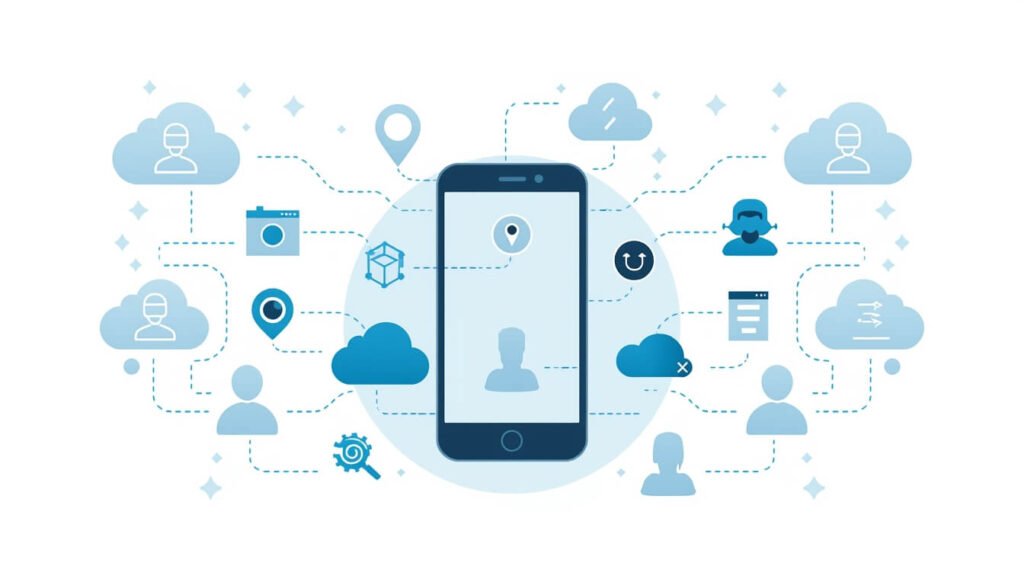
When you install a free app, you are usually the product. Many apps request far more permissions than they need to function. A flashlight app doesn’t need your contacts. A recipe app doesn’t need your microphone. Yet studies from researchers at Carnegie Mellon University have found that apps frequently access sensitive data hundreds of times per day — even when you’re not actively using them.
Why Default Settings Favor Data Collection
Both Apple and Google generate significant revenue from advertising ecosystems. While both companies have made genuine strides in privacy over recent years, the default settings still tend to err on the side of data sharing rather than protection. Changing these defaults takes just a few minutes but can dramatically reduce your exposure.
Best Smartphone Privacy Settings to Change on iPhone Right Now
Apple has built a reputation around privacy, and iOS does offer some of the strongest built-in protections available on any mobile platform. However, many of these protections are opt-in — not automatic.
Turn On App Tracking Transparency
Go to Settings → Privacy & Security → Tracking and toggle off “Allow Apps to Request to Track.” This single change prevents apps from following you across other apps and websites to build an advertising profile. Apple introduced this feature in iOS 14.5, and research showed that the vast majority of users choose to opt out when given a clear choice.
Review Location Services App by App
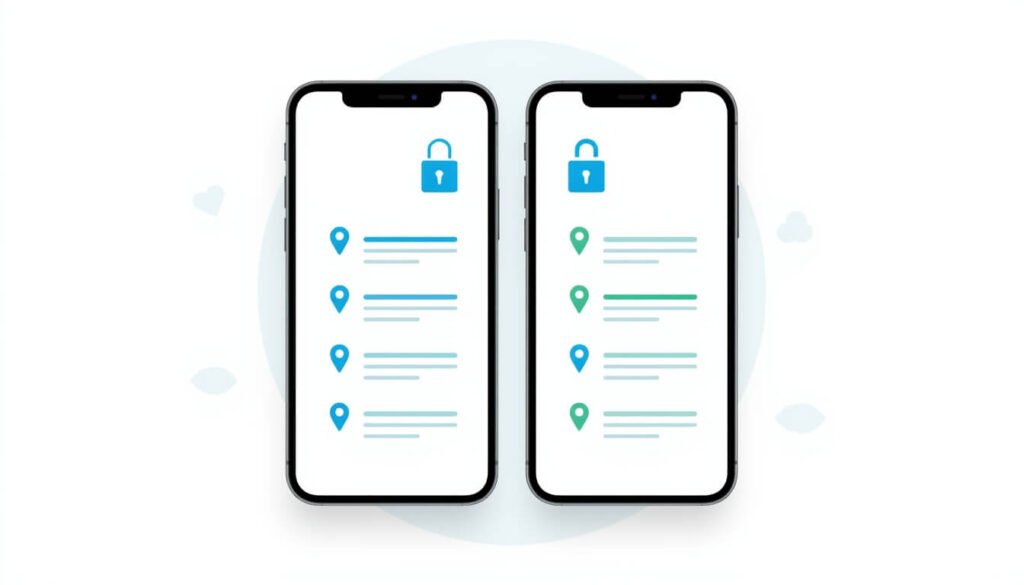
Head to Settings → Privacy & Security → Location Services. Here you’ll see every app that has ever requested your location. For each app, you have four options: Never, Ask Next Time, While Using the App, and Always. Most apps should be set to “While Using the App” at most. In reality, the majority should be set to “Never.”
Pay close attention to apps you rarely open. Social media apps, shopping apps, and games rarely need your precise location to function properly.
Enable Precise Location Controls
Within Location Services, look for apps that have “Precise Location” toggled on. For apps like Maps or Uber, precise location makes sense. For everything else — news apps, weather apps, social networks — switch to approximate location only. Apple introduced this granular control in iOS 14.
Limit What Siri Knows
Go to Settings → Siri & Search. Here you can disable Siri suggestions and app-specific access individually. Toggle off “Show in App Library,” “Show When Sharing,” and “Suggestions on Lock Screen” for apps that don’t need that level of integration. Under Settings → Privacy & Security → Analytics & Improvements, also turn off “Share iPhone Analytics” and “Improve Siri & Dictation.”
Turn Off Personalized Ads
Navigate to Settings → Privacy & Security → Apple Advertising and toggle off “Personalized Ads.” Apple’s own ad network will still show you ads, but they’ll be based on context rather than your personal profile.
Best Smartphone Privacy Settings to Change on Android Right Now
Android devices vary more widely than iPhones because manufacturers like Samsung, Google, and OnePlus each customize the operating system. The settings below apply broadly to most Android 12 and above devices, with slight navigation differences between brands.
Use the Privacy Dashboard
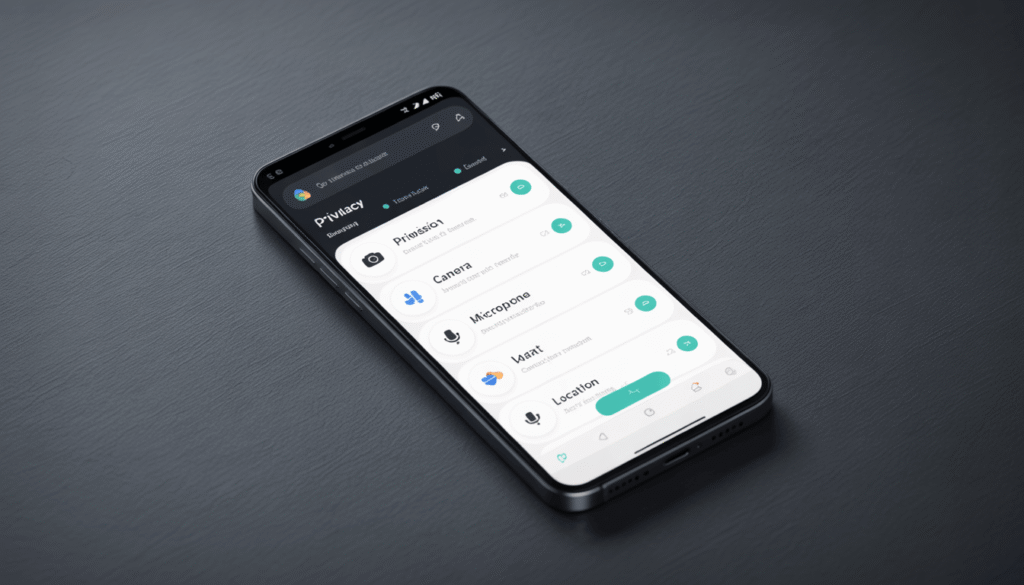
On Android 12 and later, go to Settings → Privacy → Privacy Dashboard. This shows you a timeline of which apps accessed your camera, microphone, and location over the past 24 hours. It’s one of the most underused features on Android. Review it once a week and revoke permissions from any app that accessed sensitive data without an obvious reason.
Manage App Permissions Aggressively
Go to Settings → Privacy → Permission Manager. Open each category — Camera, Microphone, Location, Contacts, Calendar — and review which apps have access. Revoke access for any app where you can’t immediately think of why it needs that permission.
Opt Out of Personalized Advertising
Go to Settings → Privacy → Ads (or Google → Ads on some devices). Select “Delete advertising ID.” On older Android versions, look for “Opt out of Ads Personalization.” Deleting your advertising ID cuts the link advertisers use to track your behavior across apps.
Turn Off “Improve Location Accuracy”
Go to Settings → Location → Location Services and turn off “Wi-Fi scanning” and “Bluetooth scanning.” These allow apps and Google to use nearby Wi-Fi networks and Bluetooth devices to pinpoint your location even when GPS is off — a feature most people don’t know exists.
Review Google Account Privacy Settings
Open Settings → Google → Manage your Google Account → Data & Privacy. Here you can pause Web & App Activity, YouTube History, and Location History. Turning these off stops Google from building a comprehensive timeline of your activity. You can also run the Privacy Checkup tool to review all connected apps and permissions in one place.
Universal Privacy Settings That Work on Both Platforms
Beyond the platform-specific changes above, several privacy best practices apply regardless of whether you’re using an iPhone or Android device.
Use a Privacy-Focused Browser
The default browsers on both platforms send browsing data to their respective parent companies. Consider switching to Firefox Focus or Brave for everyday browsing. Both block trackers by default and don’t build a browsing profile tied to your identity.
Disable Lock Screen Notifications Preview
Both platforms allow you to hide notification content on the lock screen. On iPhone, go to Settings → Notifications → Show Previews → Never. On Android, go to Settings → Notifications → Lock Screen → Don’t show notifications at all or choose to show notifications without content. This prevents anyone who picks up your phone from reading your messages at a glance.
Audit App Permissions Quarterly
Privacy isn’t a one-time fix. Apps update, new permissions get added, and your habits change. Set a reminder once every three months to review your app permissions list on both platforms. Delete any apps you no longer use — unused apps with permissions are a quiet risk.
Enable Two-Factor Authentication
This isn’t a privacy setting in the traditional sense, but it’s one of the most effective protections available. Use an authenticator app rather than SMS-based codes when possible. Apps like Authy or Google Authenticator add a layer of security that protects your accounts even if someone gets your password.
Quick Reference: Smartphone Privacy Settings at a Glance
| Setting | iPhone Path | Android Path | Priority |
| App Tracking Transparency | Settings → Privacy → Tracking | Settings → Privacy → Ads | 🔴 High |
| Location (per app) | Settings → Privacy → Location Services | Settings → Privacy → Permission Manager → Location | 🔴 High |
| Precise Location | Within each app in Location Services | Within each app in Permission Manager | 🔴 High |
| Ad ID / Personalized Ads | Settings → Privacy → Apple Advertising | Settings → Privacy → Ads → Delete Ad ID | 🔴 High |
| Analytics Sharing | Settings → Privacy → Analytics | Settings → Google → Manage Account → Data & Privacy | 🟡 Medium |
| Lock Screen Notifications | Settings → Notifications → Show Previews | Settings → Notifications → Lock Screen | 🟡 Medium |
| Wi-Fi / Bluetooth Scanning | N/A (handled by iOS) | Settings → Location → Location Services | 🟡 Medium |
| Browser Tracking | Switch to Firefox Focus or Brave | Switch to Firefox Focus or Brave | 🟡 Medium |
| Microphone / Camera (per app) | Settings → Privacy → Microphone / Camera | Settings → Privacy → Permission Manager | 🔴 High |
| Siri Analytics | Settings → Siri & Search | N/A | 🟢 Low |
Frequently Asked Questions About Smartphone Privacy Settings
Q: Will changing my privacy settings break any apps? In most cases, no. The majority of privacy settings described here only affect data collection and advertising, not core app functionality. However, revoking location access from apps that require it — like Maps or delivery services — will limit what those apps can do. Review each permission change in context.
Q: Do I need to change these settings every time I update my phone’s operating system? Major OS updates occasionally reset some privacy preferences or introduce new settings you haven’t configured yet. After any major iOS or Android update, it’s worth spending five minutes reviewing your Privacy & Security settings to make sure your preferences are still in place.
Q: Is it safe to delete my Android advertising ID? Yes. Deleting your advertising ID doesn’t break any app functionality. It simply removes the persistent identifier that allows advertisers to link your behavior across multiple apps. You may notice that ads become less personalized, which is the intended outcome.
Q: How do I know which apps are tracking me in the background? On iPhone, go to Settings → Privacy & Security → Location Services and look for the purple or grey arrow next to each app name. A purple arrow means the app recently used your location. On Android, the Privacy Dashboard shows a 24-hour timeline of all sensor access. These two tools give you a clear picture of background activity.
Q: Are there third-party apps that can improve my phone’s privacy? Yes. VPN apps (from reputable providers), privacy-focused browsers like Brave, and DNS filtering apps like NextDNS can add meaningful layers of protection. However, they should supplement your built-in settings, not replace them. The Electronic Frontier Foundation’s Surveillance Self-Defense guide is an excellent free resource for deeper privacy management.
Conclusion: Take Control of Your Smartphone Privacy Today
Your phone’s default settings were designed for convenience and data collection. The best smartphone privacy settings are the ones you actually enable — and the changes above are straightforward enough that you can complete most of them in a single sitting.
Start with the highest-priority items: app tracking, location permissions, and advertising IDs. These three changes alone will meaningfully reduce how much of your data is shared with third parties. Then work through the medium-priority settings at your own pace.
Privacy isn’t about having something to hide. It’s about maintaining control over your own information. As the Mozilla Foundation notes in its annual Privacy Not Included guide, the devices we carry everywhere deserve at least as much scrutiny as the websites we visit. Your phone is ready to protect you — you just have to tell it to.
Your next step: Open your phone’s Privacy settings right now and start with Location Services. Review just five apps today. That’s enough to make a real difference.