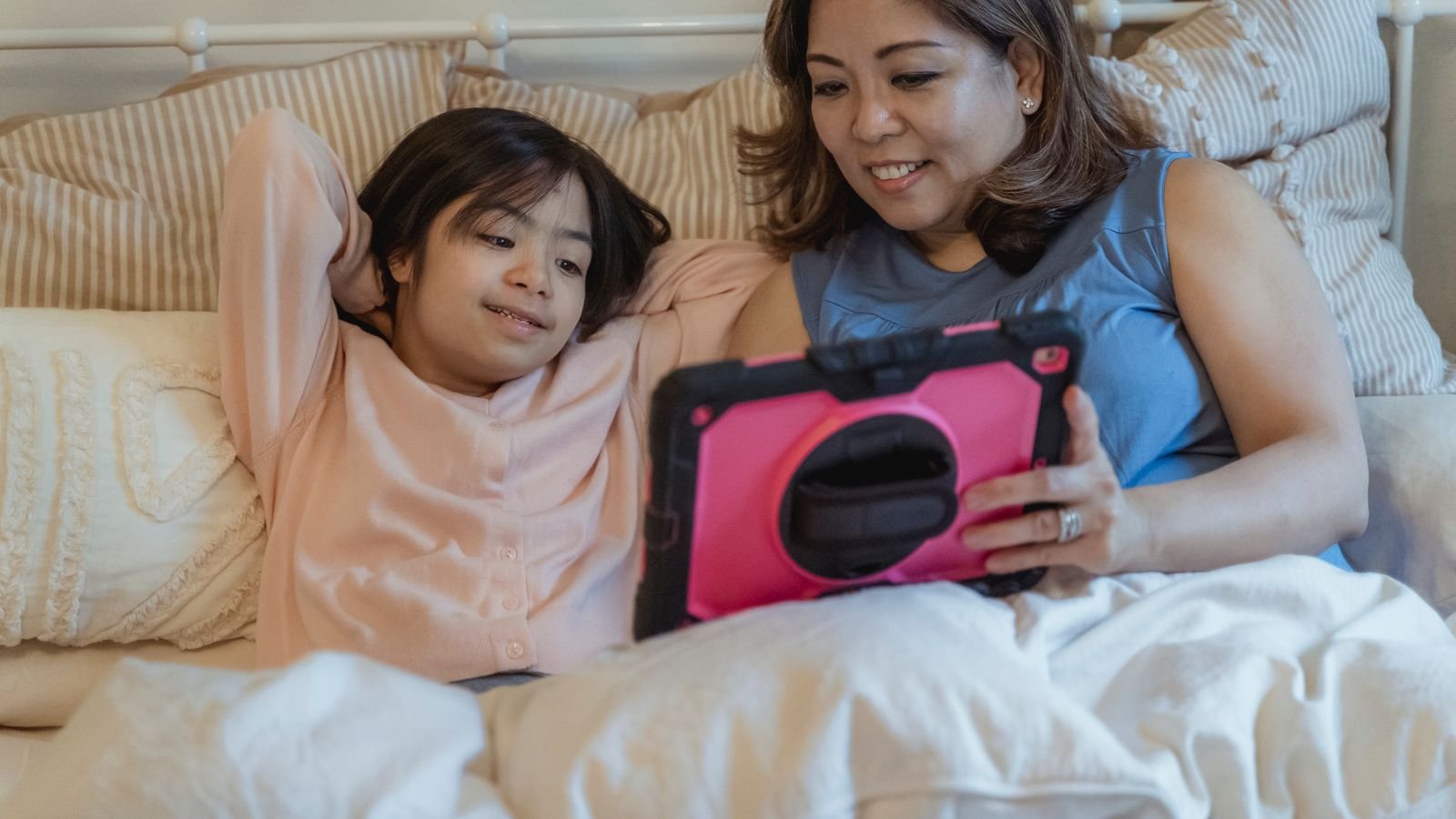
YouTube parental controls come in three separate setups, and the right one depends on your child’s age. For under-9s, use the YouTube Kids app; for roughly 9 to 12, a supervised YouTube account; for 13 to 17, the optional teen supervision that you and your teen both agree to.
What most Indian homes actually use is none of these. The child just picks up Mummy’s phone or the hall TV, logged in to a grown-up’s account, with Restricted Mode switched on. Section 5 explains why that’s the weakest option and what to do instead.
⚡ Key takeaways
- Under 9: YouTube Kids app, set to Preschool (4 and under) or Younger (5–8). Turn Search off, or use “Approve content yourself”.
- About 9–12: a supervised account on regular YouTube with the Older kids setting (roughly 9+). Comments, uploads and purchases are switched off.
- 13–17: teen supervision, which shows you channel activity like uploads and comments, not what they watch. Both of you must agree to it.
- Restricted Mode is a filter on one device or browser, and anyone holding the phone can switch it off. It’s a backup, not a plan.
- Every setup lets you turn off autoplay and block channels. Do both on day one.
YouTube Kids, Supervised YouTube and Teen Supervision: What Each One Is
Google’s YouTube parental controls use similar names for different things, so here’s the plain version.
YouTube Kids is a separate app (and website) with its own, smaller catalogue of children’s videos. When you create a profile you pick a content level: Preschool (ages 4 and under), Younger (5–8) or Older (9–12), or Approve content yourself, where your child sees only videos and channels you hand-pick.
A supervised kid account is regular YouTube, with limits. It’s meant for children under 13 (or the age of consent in your country), and Google lists India among the countries where it’s available. You choose one of three content settings: Older kids (generally 9+), Teens (13+) or Older teens (16+). Older guides still call these Explore, Explore More and Most of YouTube; the current help pages use the new names.
Teen supervision is for 13 to 17-year-olds who run their own accounts. Filtering isn’t its main job. It shows you what your teen is doing as a creator: uploads, live streams, comments and subscriptions.
Which YouTube Parental Controls Fit Your Child’s Age
Google gives age guidance, not rules. This is how I’d match them, using the age bands on Google’s own help pages.
| Child’s age | Best option | Content level to pick | What your child can’t do | My take |
|---|---|---|---|---|
| 0–4 | YouTube Kids | Preschool, or Approve content yourself | Search is limited to content for 4 and under | Approve content yourself. It’s more work, but it’s the only setting where you know every video |
| 5–8 | YouTube Kids | Younger, with Search off | Search limited to content for 8 and under | The sweet spot for the Kids app |
| 9–12 | Supervised YouTube account | Older kids (9+) | No comments, uploads, Shorts posting, purchases or live chat | Move here when YouTube Kids starts feeling babyish |
| 13–15 | Teen supervision (optional) | Teens (13+) is placed automatically | Age-restricted videos stay blocked until 18 | Worth it if your teen posts videos |
| 16–17 | Teen supervision (optional) | Older teens (16+) is placed automatically | Age-restricted videos stay blocked until 18 | Talk more, monitor less |
A few things hold at every age. Google says age-restricted content isn’t available to anyone under 18, whatever setting you choose. And none of these filters is perfect: the YouTube Kids help page itself says “not all videos have been manually reviewed”.
Don’t skip a step because your child is “mature for their age”. A 7-year-old who reads well still isn’t ready for comment sections.
💡 Pro tip
If your child uses the same Google Account on YouTube and YouTube Kids, Google says a channel you block on YouTube is blocked on YouTube Kids too. One account means one block list to manage.
 Also readPhone Safety for Parents: 9 Settings to Fix on Your Diwali Visit
How to Set Up YouTube Kids for Under-9s
You need your own Google Account with a verified birthday. Then:
- Install YouTube Kids and sign in with your account. Accept the parental consent and enter your password.
- Add your child’s first name or nickname, age and (optional) birth month.
- Pick the content setting: Preschool, Younger, Older or Approve content yourself.
- Select your child’s profile and hand over the phone.
Now open the parent settings. Tap the lock icon in the corner, solve the multiplication sum (or enter a custom passcode), go to Settings and pick your child’s profile. These are the controls I’d change first:
- Search off. Your child is then limited to videos and channels verified by YouTube Kids, not whatever they type. Kids spell creatively, and search is where odd videos sneak in.
- Disable autoplay. One rhyme video won’t roll into the next twenty.
- Pause watch history. New views stop shaping recommendations, which helps when an older cousin used the profile for a day. You can also clear watch and search history here.
- Timer. Under Set Timer, drag the slider and tap Start timer. When time runs out, your child sees “Time’s up!” and the app locks until a parent unlocks it.
To block something, tap the three-dot More icon on a video and choose Block this video, or open the video and choose Block entire channel. Set a custom passcode too. The multiplication sum stops a 4-year-old, but a sharp 8-year-old with a times table will get past it.
If your child already has a Google Account managed in Family Link, you can change the content level there: select your child, then Manage settings > More > YouTube Kids, and tap Edit.
How to Set Up a Supervised YouTube Account for Ages 9–12
When your child wants the same Minecraft or science channels their friends watch, a supervised account is the next step. There are two ways to create one.
Route 1: Family Link (child has their own Google Account)
- Open Family Link and select your child.
- Tap Controls > YouTube > YouTube & YouTube Music.
- Follow the steps and choose a content setting. Older kids is the one for most 9 to 12-year-olds.
Route 2: On your own phone (no child account needed)
- Open the YouTube app, signed in as you.
- Tap You > Settings > Family Center, then Add a kid account.
- Follow the prompts and pick the content setting.
Route 2 is handy for the classic Indian setup where your child doesn’t have a phone. Afterwards you switch between your profile and theirs from the Who’s Watching page or Switch account in the You tab. One limit: a kid account created on a parent’s device doesn’t get YouTube Music.
The controls to switch on
For a supervised account, the YouTube parental controls live in Family Center. In the YouTube app, go to You > Settings > Family Center and select your child. You’ll find Disable autoplay, Pause watch history, Pause search history and Clear history.
Under Time management you can cap time spent scrolling the Shorts feed; Google says that limit resets each morning. Family Link has YouTube controls too, under Controls > Content restrictions > YouTube.
To block a channel, open it in YouTube while signed in as the linked parent. In the app, tap More > Block channel for kids, then Block next to your child’s name. Google warns that this only blocks that channel. Reuploads on other channels and similar channels can still show up.
⚠️ Watch out
Adding supervision to an existing Google Account for a child under 13 deletes some of what’s on it, including videos, comments, subscriptions and purchases, according to Google’s Family Link help. If your child has been uploading to their own channel, download that data first.
Shared Phone or Family TV: Where Restricted Mode Falls Short
This is the catch from the top. In many homes a child under 10 watches on a parent’s phone or the living room TV, signed in to a grown-up’s account, and Restricted Mode is the only one of the YouTube parental controls in use. Here’s what it does and doesn’t do.
Restricted Mode uses signals like titles, descriptions and age restrictions to hide potentially mature videos, and it hides comments. That’s useful. But three weaknesses matter in an Indian home:
- It’s per device, not per person. Google says you have to turn it on for each browser and each profile. Switch it on in your phone and the TV is still wide open.
- It isn’t locked. On your own account, anyone holding the phone can open Settings > General and flip it off. Only a parent using Family Link can lock it on a child’s account, and only for children who aren’t eligible for a supervised account.
- It’s weaker in some languages. Google’s own page says the filter’s quality can vary by language. That matters if your child watches Hindi, Tamil or Marathi content.
There’s a quieter problem too. After a week of cartoons on your profile, your feed fills with them, and their feed fills with whatever you watched last night.

What to do instead
- On your phone: create a kid account through Family Center > Add a kid account, as in section 4, and switch to it before you hand the phone over. Google’s page doesn’t say that switching back to your profile needs a password, so check what your child can reach.
- On the TV: Google says supervised accounts work on most eligible smart TVs (not on older Android TV devices), and YouTube Kids has a TV app too. Use one of those profiles for the kids.
- Restricted Mode as a backup: on an Android TV, open YouTube from the Apps row, go to Settings > Restricted mode and choose On. Google notes this changes only that TV, not your phone.
If your smart TV also tracks what’s on screen for ads, our guide to turning off ACR on smart TVs covers one more setting worth five minutes.
 Also readSmart TV Tracking: How to Turn Off ACR on Samsung, LG and Sony
Teen Supervision on YouTube: What You Can and Can’t See
At 13, your child can run their own Google Account and YouTube channel. Teen supervision is how you keep some visibility, and Google designed it so both of you have to agree. Either of you can start the setup from Family Center, and either can turn it off at any time.
Once linked, Family Center shows you:
- The channels your teen owns or can upload to, with basics like subscriber count.
- How many videos and live streams they’ve posted, including private and unlisted uploads.
- How many comments they’ve left on other people’s videos.
- How many channels they subscribe to.
You also get email alerts for things like a new upload or a live stream, and you can set a Shorts time limit plus take-a-break and bedtime reminders.
What you don’t get is their watch history. The help page lists channel activity only. Content still follows age bands: teens 13–15 land in the Teens setting and 16–17 in Older teens.
So this suits a teen who’s started posting gaming clips or Shorts. It won’t tell you what they watched at 1 am. For a 14-year-old asking about games like Free Fire, our Free Fire playtime rules post has the conversation-starter angle that works better than spying.
💡 Pro tip
Pitch teen supervision as protection for their channel, not as monitoring. You’ll know early when they start uploading or go live, which is a fair trade for most teens.
My Verdict: What to Set Up This Weekend
If you only have 20 minutes this Children’s Day weekend, do this, in this order:
- Stop sharing your account. Create a kid profile, on YouTube Kids for under-9s or through Family Center for 9 to 12-year-olds, even if the child never gets their own phone.
- Turn off autoplay in that profile. It does more for screen habits than any filter.
- Turn Search off in YouTube Kids.
- Block the two or three channels you already dislike. You know which ones.
- Set a custom passcode in YouTube Kids so the parent settings stay yours.
Daily time limits are a separate job from YouTube parental controls, best done with Family Link or Screen Time. This post is about what they watch, not how long. And while you’re in your phone’s settings, spend five more minutes on our list of smartphone privacy settings you probably never changed.
✅ Our verdict
Under 9, YouTube Kids with Search off beats everything else; it’s the only option built for that age. From about 9 to 12, a supervised account on the Older kids setting gives your child the real YouTube their friends talk about, without comments or uploads. For teens, offer supervision as a deal, and don’t count on Restricted Mode on a shared phone at any age.
Frequently Asked Questions
What is the difference between YouTube Kids and a supervised YouTube account?
YouTube Kids is a separate app with a smaller set of children’s videos and three content levels up to age 12. A supervised account is the regular YouTube app with a content setting (Older kids, Teens or Older teens) and features like comments and uploads switched off. Google pitches supervised accounts at kids under 13 whose parents think they’re ready to explore YouTube.
What happened to Explore, Explore More and Most of YouTube?
Those were the old names for the supervised account content settings. Google’s help pages now call them Older kids (generally 9+), Teens (13+) and Older teens (16+). Check your Family Center screen, since older articles still use the old labels.
Can my child turn off Restricted Mode?
On a normal account, yes. Anyone with the phone can switch it off under Settings > General. Only a parent using Family Link can lock it on a child’s account, and Restricted Mode isn’t available on supervised accounts at all; their content setting does the filtering.
How do I turn off autoplay for my child on YouTube?
In YouTube Kids, open the parent settings from the lock icon, pick the profile and turn on “Disable autoplay”. For a supervised account, go to You > Settings > Family Center, select your child and switch on “Disable autoplay”.
The Bottom Line
YouTube parental controls only work if your child has their own profile. Pick YouTube Kids under 9, a supervised account on Older kids from about 9 to 12, and teen supervision by agreement after 13. Then turn off autoplay and block the channels you already dislike.
Start with the phone your child uses most, even if that’s yours. If you’re also setting up phones for your parents this season, our phone safety settings for parents guide is the next one to do.
Keep reading
Read nextPhone Safety for Parents: 9 Settings to Fix on Your Diwali Visit Read next15 Smartphone Privacy Settings You Probably Never Changed
 Read nextFree Fire India Is Back: The 3-Hour Rule Every Parent Should Know
Sources
- YouTube Help: YouTube Kids vs supervised experiences, content levels and ages
- YouTube Kids Help: create a YouTube Kids profile, content settings and search limits
- YouTube Kids Help: parental controls (search, autoplay, watch history)
- YouTube Kids Help: limit screen time with the timer
- YouTube Kids Help: block and share content
- YouTube Kids Help: content level in Family Link
- YouTube Help: content settings for supervised accounts
- YouTube Help: what a supervised experience turns off, and where it’s available
- YouTube Help: set up supervised kid accounts
- YouTube Help: FAQs about supervised kid accounts (smart TVs)
- YouTube Help: parental controls in Family Center
- YouTube Help: block channels for supervised kid accounts
- YouTube Help: supervised experiences for teens
- YouTube Help: turn Restricted Mode on or off
- Android TV Help: Restricted Mode on Android TV
- Google For Families Help: YouTube and YouTube Kids options for your child