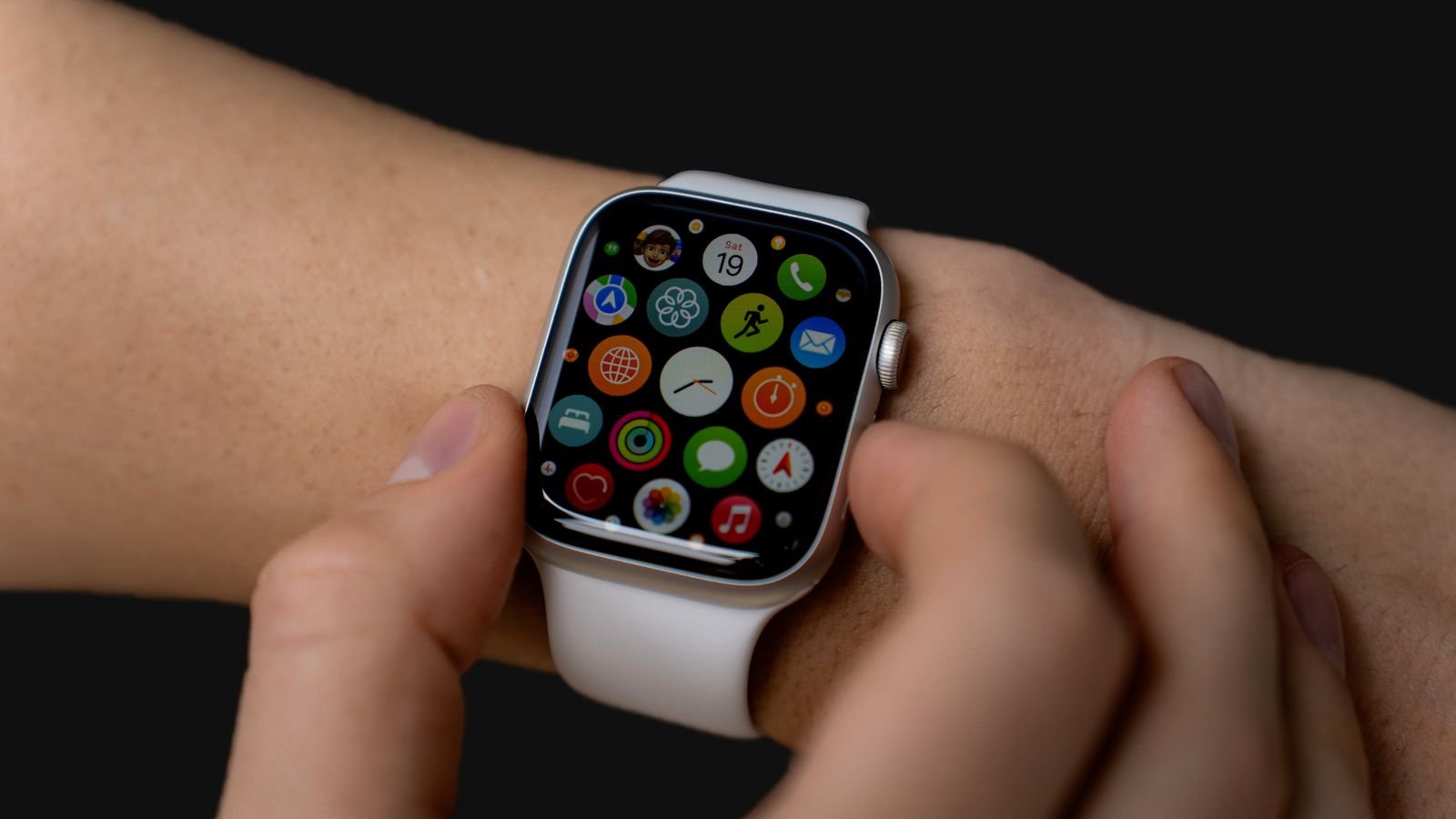
Most of us set up a smartwatch for steps and WhatsApp alerts, then never open its settings again. That’s a pity, because some of the best smartwatch hidden features are safety and health tools that stay switched off until you turn them on. On an Apple Watch or Samsung Galaxy Watch, nine of them take about 15 minutes to set up.
Two of them could matter a lot for your parents, and one setting in feature 2 is wrong on many watches bought in India. Here’s what each one does, whether it works in India and where to find it.
⚡ Key takeaways
- Fall detection is off by default on Galaxy Watches and on Apple Watches for people under 55. Turn it on for parents first.
- Set your SOS contacts and check that the emergency number is 112, India’s single emergency number.
- Apple lists the ECG app, irregular rhythm notifications, sleep apnea notifications and hypertension notifications as available in India. Samsung brought irregular heart rhythm alerts to Galaxy Watches in India in August 2024.
- These alerts can flag a problem, but they don’t diagnose anything. Always confirm with a doctor.
- Budget watches vary, so check your watch’s own app before assuming a feature exists.
Why Smartwatch Hidden Features Stay Hidden
Watch makers switch many features off on purpose. Some need your consent because they handle health data. Others need extra setup, like emergency contacts, a date of birth or a few weeks of wearing the watch at night.
The other reason is where the settings live. On an Apple Watch, most of them are in the Watch app or the Health app on the iPhone, not on the watch itself. On a Galaxy Watch, they’re split between the Galaxy Wearable app and the Samsung Health Monitor app. If you only ever used the watch screen, you probably never saw them.
Which watches this guide covers
The steps below are for the Apple Watch and Samsung’s Wear OS Galaxy Watches (Watch4 and newer), because those are the ones with clear official documentation and India availability. If you use a budget watch from Noise, boAt, Fire-Boltt or another brand, skip to the section on budget watches near the end.
Feature 1: Fall Detection (Turn This On for Parents)
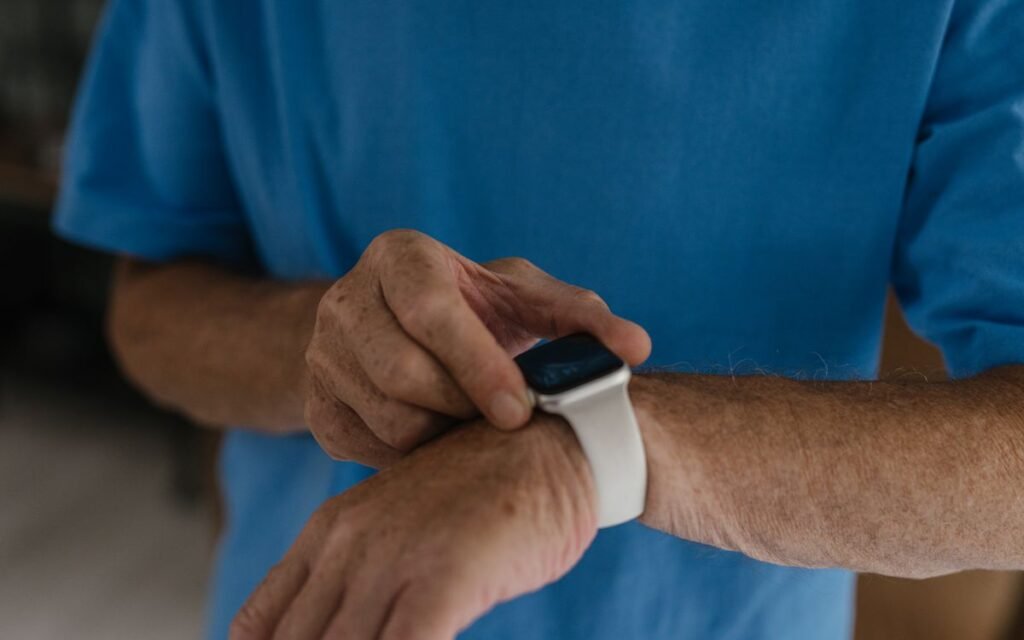
This is the one feature I’d switch on before anything else, especially on a watch you’ve gifted to a parent.
On Apple Watch
Apple’s support page says Fall Detection turns on automatically only if you entered an age of 55 or older. For everyone else (it’s available from 18), you turn it on yourself: open the Watch app on iPhone > My Watch > Emergency SOS > Fall Detection. You can choose “Always on” or “Only on during workouts”.
After a hard fall, the watch taps your wrist, sounds an alarm and shows an alert. If you don’t move for about a minute, it starts a 30-second countdown and then calls emergency services. Your emergency contacts from Medical ID also get a message with your location. It works on Apple Watch SE, Series 4 or later and every Ultra.
On Galaxy Watch
Samsung’s UK support page walks through it: open the Wear app, go to SOS (on newer models this sits under Safety and emergency), switch on fall detection and add up to four emergency contacts. After a hard fall, the watch alerts you for 60 seconds, then sends an SOS message with your location to your contact if you don’t respond.
⚠️ Watch out
Neither watch catches every fall, and hard workouts can trigger false alarms. Samsung also notes that SOS calls and messages need a network connection and a paired phone, so a Bluetooth-only Galaxy Watch left far from the phone can’t send help.
Feature 2: Emergency SOS Contacts and the 112 Check
Fall detection is only as good as the contacts and number behind it. This is the setting that’s often wrong.
Many people add emergency contacts in a hurry during setup, or not at all. Samsung says you need at least one contact for the SOS feature to work. On Apple Watch, the location message goes to the emergency contacts saved in your Medical ID in the Health app, so open it and check the names and numbers are current.
Make sure it dials 112
India has a single emergency number, 112, run under the Emergency Response Support System. According to Tripura Police’s 112 page, it brings police (100), fire (101), ambulance (108) and the women’s helpline (1091) onto one common platform. If you bought your watch abroad or changed the emergency number during setup, check the SOS settings in your watch’s companion app and make sure 112 or a family member is set.
💡 Pro tip
For an elderly parent who lives alone, add two family members as emergency contacts, not one. If the first phone is on silent at night, the second person still gets the location message.
 Also readPhone Safety for Parents: 9 Settings to Fix on Your Diwali Visit
Features 3 and 4: Irregular Heart Rhythm Alerts and ECG
These two work together. Irregular rhythm notifications run quietly in the background and look for signs of atrial fibrillation (AFib), a type of irregular heartbeat. The ECG app lets you take a reading on the spot when you feel something is off.
Is it available in India?
Yes, on both. Apple’s watchOS feature availability page lists the ECG app and Irregular Rhythm Notification for India. For Samsung, DT Next reported in August 2024 that the irregular heart rhythm notification reached Galaxy Watch7, Watch7 Ultra, Watch6, Watch5 and Watch4 owners in India through the Samsung Health Monitor app. If several readings in a row look irregular, the watch warns about possible AFib and suggests taking an ECG.
How to turn them on
- Apple Watch: open the Health app on iPhone and look in the Heart section for Irregular Rhythm Notifications and the ECG app setup.
- Galaxy Watch: update Samsung Health Monitor from the Galaxy Store, then switch on irregular heart rhythm notifications in its settings.
| Feature | Apple Watch (India) | Galaxy Watch (India) |
|---|---|---|
| Fall detection | SE, Series 4+, Ultra; auto-on at 55+ | Off by default; Wear app > SOS / Safety and emergency |
| ECG app | Listed as available | In Samsung Health Monitor |
| Irregular rhythm alerts | Listed as available | Watch4 and newer, since Aug 2024 |
| Sleep apnea notifications | Series 9+, Ultra 2+, SE 3 | Not covered in this guide |
| Hypertension notifications | Series 9+, Ultra 2+ (not SE) | Not covered in this guide |
| Blood oxygen | Series 6+, all Ultra; not for medical use | Varies by model |
Features 5 and 6: Hypertension and Sleep Apnea Notifications
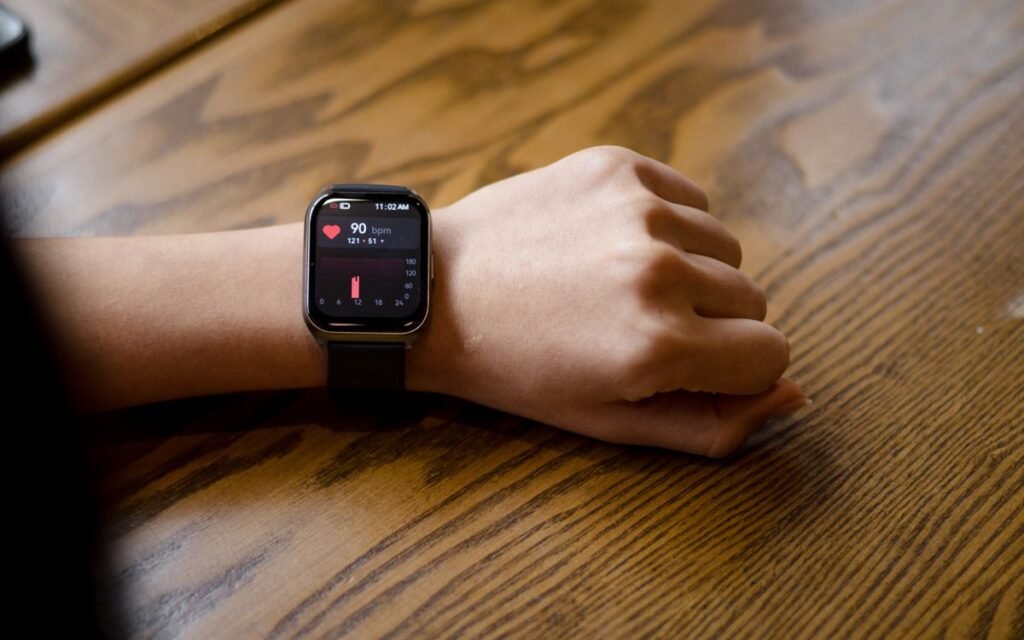
These are newer Apple Watch features, and both are listed as available in India. Neither measures anything directly in the way a doctor’s machine does. They look for patterns over weeks.
Hypertension notifications
Apple says the optical heart sensor checks for patterns of chronic high blood pressure over 30-day periods. It needs an Apple Watch Series 9 or later or Ultra 2 or later (not the SE), an iPhone 11 or later, and you must be 22 or older, not pregnant and not already diagnosed with hypertension. Apple notes the feature may not yet work on Series 12 or Ultra 4 in some regions while regulatory clearances are pending.
If you get an alert, the watch asks you to log blood pressure with a regular cuff twice a day for seven days and take the readings to your doctor. Apple is clear that not everyone with high BP will get a notification, and the watch can’t detect a heart attack.
Sleep apnea notifications
Apple’s sleep apnea page says the watch uses its accelerometer to spot breathing disturbances at night. You set it up in the Health app under Browse > Respiratory > Sleep Apnea Notifications, with sleep tracking turned on. It needs at least 10 nights of wearing the watch to sleep within 30 days, and it’s for adults 18 and over without a sleep apnea diagnosis. You can export a PDF of your breathing disturbances to show a doctor.
⚠️ Watch out
A quiet watch doesn’t mean you’re fine. Apple says not everyone with sleep apnea or hypertension gets a notification. If you snore loudly, wake up tired or have high readings at the chemist, see a doctor anyway.
 Also read15 Smartphone Privacy Settings You Probably Never Changed
Features 7 and 8: Noise Alerts and Camera Remote
These two are less serious but surprisingly handy in daily Indian life.
Noise app (Apple Watch)
Think wedding baraats, Diwali crackers, metro platforms and the office party DJ. Apple’s Noise app guide explains that the watch uses its microphone to measure sound levels and how long you’re exposed, without recording audio. When levels could affect your hearing, it taps your wrist. Set the limit at Settings > Noise > Noise Threshold on the watch, and see your history in the Health app under Hearing.
Camera Remote (Apple Watch)
Want everyone in the family photo, including you? Open the iPhone camera, and a hint appears on the watch face; tap it, then tap Camera Remote. Apple’s guide says the watch works as a viewfinder within normal Bluetooth range, about 10 metres. It uses a 3-second timer by default, and you can touch and hold the shutter to record video.
Feature 9: Blood Oxygen, Used the Right Way
Blood oxygen is the feature people tend to trust too much, so read the fine print.
Apple’s Blood Oxygen page says its readings are “not intended for medical use”, only for general fitness and wellness. It works on Series 6 or later and all Ultra models, not the SE. Readings can fail or be off because of:
- Cold skin or low blood flow, common on winter mornings.
- Tattoos on the wrist, which can block the sensor’s light.
- Movement, or your arm hanging down or fist clenched.
- A heart rate above 150 bpm.
Keep the watch snug, rest your arm flat on a table, and stay still for about 15 seconds. If you ever feel breathless, use a proper fingertip pulse oximeter and call a doctor rather than relying on the watch.
Got a Budget Smartwatch? Check These Instead
Budget watches vary a lot, and most don’t advertise ECG, AFib or fall alerts at all. That’s fine for steps and notifications, but don’t assume a health feature exists just because a watch face shows a heart icon.
Open your watch’s companion app on the phone and look for:
- SOS or emergency contact, if your model offers it. Test it once with a family member.
- Find my phone, which rings your phone from the watch.
- Camera control for group photos.
- Do Not Disturb schedule, so the watch doesn’t buzz all night.
- Notification filter, so only the apps you care about reach your wrist.
✅ Our verdict
If you do nothing else, turn on fall detection and check your SOS contacts and 112 setting, especially on a parent’s watch. Switch on the heart rhythm alerts if your watch supports them in India. Treat every health alert as a nudge to see a doctor, never as a diagnosis.
Frequently Asked Questions
Which smartwatch hidden features should I turn on first?
Fall detection and emergency SOS contacts. They’re off by default on many watches, need a minute to set up and matter most in an emergency. After that, switch on irregular heart rhythm alerts if your watch supports them.
Does Apple Watch ECG work in India?
Yes. Apple’s feature availability page lists the ECG app and Irregular Rhythm Notification for India. You set them up in the Health app on your iPhone.
Does the Samsung Galaxy Watch have AFib alerts in India?
Samsung brought irregular heart rhythm notifications to India in August 2024 for the Galaxy Watch4 series and newer, through the Samsung Health Monitor app. When it detects several irregular readings in a row, it suggests taking an ECG.
Can a smartwatch measure blood pressure?
Apple’s hypertension notifications look for patterns of high blood pressure over 30 days but don’t give you a BP number. If you get an alert, Apple asks you to check with a regular cuff for seven days and see a doctor.
Is smartwatch SpO2 accurate?
Apple says its Blood Oxygen readings aren’t for medical use. Cold skin, tattoos and movement can affect results. Use a fingertip pulse oximeter and a doctor’s advice for anything health-related.
The Bottom Line
The smartwatch hidden features that matter most are the boring safety ones: fall detection, SOS contacts and heart rhythm alerts. Spend 15 minutes on your own watch tonight, and do the same on your parents’ watches when you visit. Then lock down the phone it pairs with, using our phone safety guide for parents and these smartphone privacy settings. Galaxy Watch owners with a Samsung phone should also see what’s new in One UI 9 in India.
Keep reading
Read nextPhone Safety for Parents: 9 Settings to Fix on Your Diwali Visit Read nextOne UI 9 in India: Which Galaxy Phones Have It and What to Set Up
Sources
- Apple: watchOS feature availability (India listed for ECG, Irregular Rhythm, Sleep Apnea, Hypertension, Blood Oxygen)
- Apple Support: use Fall Detection with Apple Watch
- Apple Support: hypertension notifications
- Apple Support: sleep apnea notifications
- Apple Support: Blood Oxygen app
- Apple Support: Noise app on Apple Watch
- Apple Support: Camera Remote on Apple Watch
- Samsung UK Support: set up fall detection on Galaxy Watch
- DT Next: irregular heart rhythm notification arrives on Samsung watches in India (Aug 2024)
- Tripura Police: 112 Emergency Response Support System