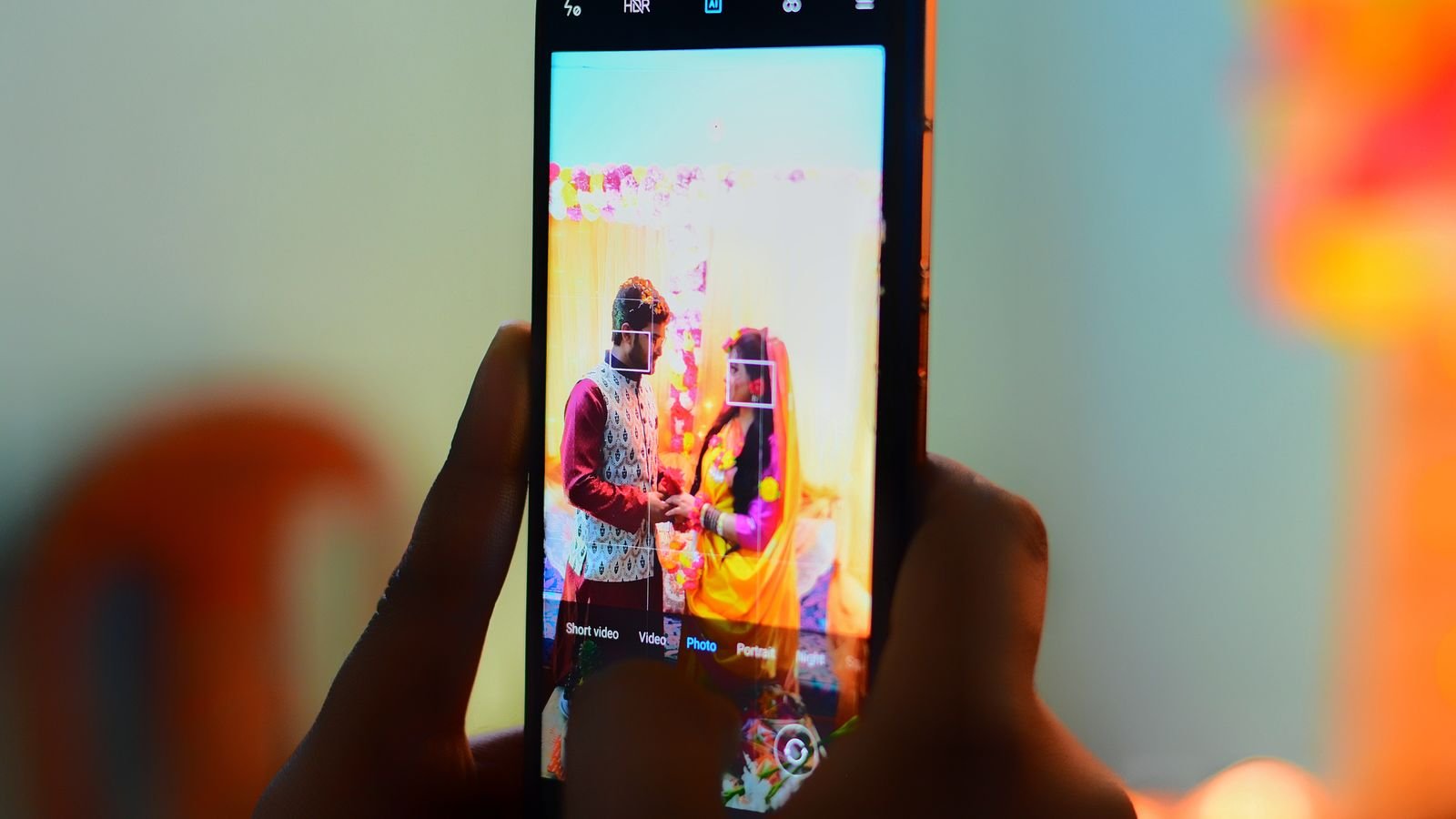
Your Diwali photos look sharp on your phone and blurry in the family group. That’s WhatsApp compressing them. Turn on the WhatsApp HD photo setting once (Settings > Storage and data > Media upload quality > HD) and every photo goes out in higher quality by default.
HD still isn’t the original file, though. If someone wants to print the family photo, there’s a better route, and it’s in section 3.
⚡ Key takeaways
- Standard quality shrinks an iPhone photo to 960×1280 pixels. HD keeps the 3024×4032 original size, with some compression, per 9to5Mac’s 2024 test.
- Make HD the default: Settings > Storage and data > Media upload quality > HD quality. Videos then go at 720p instead of 480p.
- For the true original (for printing or editing), send the photo as a Document. The limit is 2GB per file.
- HD photos can be up to about 6 times bigger, so they use more mobile data and phone storage, for you and for everyone in the group.
- Skip HD for “Good morning” forwards. Use it for photos people will keep.
Why WhatsApp Makes Your Diwali Photos Blurry
WhatsApp compresses photos so they send fast on slow networks and don’t fill up everyone’s phone. That’s sensible for a meme. It’s annoying when it’s the one photo where the whole joint family is finally looking at the camera.
9to5Mac reported that in standard quality, an iPhone photo is reduced to 960×1280 pixels. In HD, it keeps its original 3024×4032 pixels, though WhatsApp still applies some compression. That’s a big difference once someone zooms in to see faces or the rangoli.
Low light makes it worse. Diwali night shots already have more grain, and heavy compression smears that grain into blur. If you shot them well using our Diwali night-mode tips, don’t let the sending step undo it.

How to Turn On WhatsApp HD Photo by Default
You can choose HD for each photo, but the default setting saves you from forgetting.
On Android
- Update WhatsApp from the Play Store.
- Tap the three dots at the top right, then Settings.
- Tap Storage and data, then Media upload quality.
- Choose HD quality and tap Save.
Smartprix’s guide adds one thing from its own testing: if you later pick Standard manually for a photo, the default can switch back to Standard. Check the setting again after a big sharing session.
On iPhone
The same option sits under Settings > Storage and Data > Media upload quality. 9to5Mac confirmed the setting arrived on both iOS and Android in June 2024.
For one photo only
Select the photo in the chat as usual. Before sending, tap the HD icon at the top and pick HD quality. Recipients see a small HD mark on the photo, and on a slow connection or low storage they can choose to save the standard version, according to Tech Advisor.
💡 Pro tip
Before Diwali night, send one test photo in HD to yourself or a family member and zoom in on faces. If it still looks soft, check the Media upload quality setting again.
 Also readTransfer WhatsApp Chats to a New Phone: All 4 Ways Explained
 HD vs Document: Which Keeps Full Quality?
HD is “less compressed”. A Document is the untouched file. Here’s how they compare:
| Method | Quality | Size limit | Recipient sees | Best for |
|---|---|---|---|---|
| Standard (default) | Heavily compressed (960×1280 on iPhone) | Small files | Instant preview | Forwards, quick updates |
| HD | Original resolution, some compression | Larger files | Preview with HD mark | Family photos, Diwali pics |
| Document | Original file, no compression | Up to 2GB | File icon, must tap to open | Printing, editing, photo albums |
| Google Photos shared album | Link to your library | Depends on your storage | Album link | 50+ photos from one event |
How to send a photo as a document
Android: Open the chat, tap the attach (paperclip) icon, choose Document, then pick the photos from your gallery or storage and send. Smartprix’s comparison lists this route and the 2GB limit.
iPhone: Tap + in the chat, choose Document, and pick the photo. WhatsApp added a “Choose Photo or Video” option here in iOS version 23.24.73, Siasat reported in December 2023, for files up to 2GB.
The Catch: Data, Storage and Your Location
Bigger files cost everyone, which most “send HD” tips skip.
⚠️ Watch out
HD photos can be up to about 6 times larger than standard ones. In a 200-member society or family group, that adds up fast on everyone’s phone and data pack. And a photo sent as a Document is the original file, so it may carry details your camera saved, such as location, if location tagging was on.
A few habits keep this sane:
- Send HD to people who’ll keep the photo, not to every group.
- Turn off auto-download for big groups under Settings > Storage and data, so their HD photos don’t fill your phone.
- Check location tagging in your camera settings before sending originals to people you don’t know well.
If your phone is already full from festive forwards, our guide to freeing up Google Photos storage helps.
Sharing 100 Diwali Photos? Use a Shared Album
For a whole night of photos, WhatsApp isn’t the right tool. Sending 100 HD photos to a group floods the chat and everyone’s storage.
A Google Photos shared album is simpler. Google’s help page explains how: select the photos or album, tap Share, and add people or choose Create link. Note that anyone with the link can view the photos and add to the album, so share the link only with family.
- Open Google Photos and select the Diwali photos.
- Tap Share, then add them to a new album.
- Share the album with family contacts, or create a link.
- Post just the link in the family WhatsApp group.
- Turn off the link later from the album’s sharing settings if you want.
 Also readDiwali Photos on Phone: 9 Night Mode Tips for Diyas and Lights
 Our Verdict: Which Setting Should You Use?
✅ Our verdict
Turn on HD as your default for this festive week, then switch back to Standard if your data pack or storage struggles. Use Document only when someone needs the original for printing. For a full album, share a Google Photos link instead of flooding the group.
Honestly, for most people HD is the right default now. Phones have more storage and Jio and Airtel data packs are bigger than they were when WhatsApp first started compressing everything. The one exception is a phone that’s already nearly full.
Frequently Asked Questions
How do I send WhatsApp HD photo by default?
Go to Settings > Storage and data > Media upload quality and choose HD quality. All photos and videos you send will then go in HD unless you change it for a specific photo.
Does WhatsApp HD send the original photo?
Not exactly. HD keeps the original resolution but still applies some compression. To send the untouched original, send the photo as a Document.
Why do my WhatsApp photos look blurry to others?
They were probably sent in standard quality, which shrinks an iPhone photo to 960×1280 pixels. Switch to HD and send again.
What is the maximum file size on WhatsApp for documents?
Documents, including photos sent as documents, can be up to 2GB.
The Bottom Line
Blurry family photos are a settings problem. Turn on WhatsApp HD photo as your default today, send originals as documents when someone wants to print, and use a shared album for the big batch. Do it before Diwali night, not after.
Keep reading
Read nextDiwali Photos on Phone: 9 Night Mode Tips for Diyas and LightsRead nextTransfer WhatsApp Chats to a New Phone: All 4 Ways Explained Read nextNew Phone Setup: 9 Things to Do Before You Use It
Sources
- 9to5Mac: WhatsApp lets you set HD quality as default (18 June 2024)
- Tech Advisor: How WhatsApp HD photos work
- Smartprix: Set HD as default on Android (2024)
- Smartprix: HD photos vs documents, steps and 2GB limit
- Siasat: WhatsApp iOS 23.24.73 sends original-quality media as files (Dec 2023)
- Google Photos Help: Share photos and albums