To cast phone to TV, you need the method your phone and TV both speak: Google Cast for most Android phones and Google TVs, Smart View for Samsung, AirPlay for iPhone. Get that match right and it takes under a minute.
Wedding season means everyone wants the mehendi videos and shaadi album on the big screen, with the whole family on the sofa. If your TV refuses to show up in the list, the cause is usually not the TV at all. It’s one Wi-Fi detail, and I’ll get to it in section 7.
⚡ Key takeaways
- Android to Google TV or Chromecast: swipe down Quick Settings and tap Cast, or use Cast my screen in the Google Home app (Android 8.0 or later).
- Samsung phone to Samsung TV: tap Smart View in the Quick Panel, pick your TV, enter the PIN if asked.
- iPhone: Control Center, then Screen Mirroring, to an Apple TV or an AirPlay-compatible smart TV.
- No wireless option? A USB-C to HDMI cable works on iPhone 15 and later, Pixel 8 and later, and Galaxy phones that support DeX.
- Golden rule: phone and TV must be on the same Wi-Fi network.
Cast Phone to TV: First, Know What Your TV Supports
Look at what your TV runs before you tap anything, because that decides the method.
Many smart TVs in Indian homes run Google TV or Android TV, and those can receive Google Cast, the same thing a Chromecast does. If your TV’s home screen says Google TV or Android TV, you’re in this group. Older “dumb” TVs can join it with a Chromecast or Google TV dongle in the HDMI port.
Samsung TVs run Samsung’s own system. They take Smart View from Galaxy phones, and Samsung India’s support page also lists Apple AirPlay as a way to put an iPhone screen on a Samsung TV.
Two ways to “cast”
Mirroring and casting sound the same but behave differently:
- Mirroring copies your whole phone screen to the TV. Notifications, WhatsApp pop-ups, everything.
- Casting from an app sends only the video. Samsung’s support page points out that apps like Netflix and YouTube have a built-in Cast icon: tap it, pick the TV, and the phone becomes a remote.
For a photo slideshow, mirroring is fine. For a two-hour wedding video, casting from the app is kinder to your battery and won’t show your aunty’s “Good morning” messages to the whole room.

Android Phone to Google TV, Android TV or Chromecast
This covers a Redmi, Realme, Vivo, OnePlus or Pixel phone with a Google TV, Android TV or Chromecast. There are two routes.
Route 1: Quick Settings (fastest)
Google’s Pixel help page gives these steps:
- Swipe down twice from the top of the screen.
- Tap Cast. Other brands may call the tile Screen Cast or Smart View.
- Pick your TV. You can share the entire screen or a single app.
- To stop, swipe down and tap Disconnect on the Cast notification.
If you can’t see the tile, Google says you can add Cast to Quick Settings by editing the tiles.
Route 2: Google Home app
Google’s Chromecast help says this works on Android 8.0 or later:
- Open the Google Home app.
- Tap Favorites or Devices.
- Touch and hold your TV’s tile.
- Tap Cast, then Cast my screen (or Cast one app).
To stop, touch and hold the tile again and tap Stop mirroring. Google also says the microphone permission must be on for Google Play Services, which sounds odd, but it’s on Google’s checklist.
💡 Pro tip
Mirroring is heavy on battery. Google’s own help page suggests turning on Battery Saver during a long cast. For a long video, plug the phone into a charger near the sofa.
 Also readSmart TV Slow? 7 Fixes for Google TV, Samsung and LG
Samsung Phone to Samsung TV With Smart View
If both your phone and TV are Samsung, Smart View is the easy button. Samsung India’s support page lists these steps:
- Pull down the Quick Panel on your Galaxy phone.
- Tap Smart View.
- With the TV on, tap your TV’s name in the list.
- Choose Full Screen or Multi View, depending on what your TV supports.
- Enter the PIN shown on the TV if it asks, then tap Connect.
If your TV doesn’t appear, tap the refresh symbol. Still nothing? Samsung says to check that the TV is on and on the same Wi-Fi as the phone.
When the picture looks small
Phone videos are tall; TVs are wide. Samsung lets you fix the black bars: tap the Smart View icon, then Change Aspect Ratio and pick an option.
Tap View: the fancy shortcut
Samsung also has Tap View, where you tap the phone on the TV to start mirroring. It needs a TU7000 or newer TV, a Galaxy phone on Android 8.1 or later, and SmartThings updated, with Tap View switched on in its settings. Nice if you have the hardware; skip it if you don’t.
Samsung says feature availability depends on the TV model. Its DeX page also says wireless DeX can work with other TVs that support Miracast screen mirroring, but “performance is not guaranteed” and a 2019 or newer smart TV is recommended.
Which Method Works for Your Phone and TV
Find your phone on the left and your TV along the top.
| Your phone | Google TV / Android TV / Chromecast | Samsung smart TV | Apple TV or AirPlay TV | TV with no smart features |
|---|---|---|---|---|
| Most Android phones (Redmi, Realme, Vivo, OnePlus, Pixel) | Quick Settings Cast or Google Home Cast my screen | App Cast icon (YouTube, Netflix) | Not supported | Chromecast dongle, or USB-C to HDMI if your phone supports video out |
| Samsung Galaxy | Google Home Cast my screen, or app Cast icon | Smart View (best match) | Not supported | Samsung DeX HDMI adapter on supported models |
| iPhone | App Cast icon (YouTube, Netflix) | AirPlay, on supported Samsung models | Screen Mirroring in Control Center | USB-C to HDMI (iPhone 15 and later), Lightning Digital AV Adapter on older iPhones |
iPhone to Apple TV or an AirPlay Smart TV
iPhones mirror with AirPlay, not Google Cast. Apple’s steps are short.
Mirror the whole screen
- Connect the iPhone to the same Wi-Fi as your Apple TV or AirPlay-compatible smart TV.
- Open Control Center. On iPhone X or later, swipe down from the top-right corner.
- Tap Screen Mirroring and pick your TV.
- If an AirPlay passcode appears on the TV, type it on the iPhone.
To stop, open Control Center, tap Screen Mirroring, then Stop Mirroring.
Play just one video
Open the video and tap the AirPlay button. In the Photos app, Apple says you may need to tap Share first. This is the better option for the wedding video, because your screen stays free.
Apple also notes that some video apps don’t support AirPlay at all. If the button is missing, try the app’s own Cast icon instead.
⚠️ Watch out
Not every smart TV has AirPlay. Check your TV’s settings or its spec sheet for “AirPlay” before you spend twenty minutes trying. If it’s missing, a cable is the reliable fallback.
No Wireless Option? Use a Cable
Old TV, no Chromecast, no AirPlay? An HDMI cable still works, but only if your phone can send video out of its port. This is the catch that trips people up after buying a cheap adapter.
iPhone
Apple says iPhone 15 models, iPhone 16 (except 16e), iPhone 17 (except 17e) and newer supported models can connect to a TV with a USB-C to HDMI adapter or cable. With HDMI 2.0, that’s up to 4K at 60Hz. Apple’s USB-C Digital AV Multiport Adapter is a compatible official option.
Older iPhones with a Lightning port need Apple’s Lightning Digital AV Adapter, which Apple India still lists. Apple’s adapter help page adds a few useful points:
- The HDMI adapter carries sound; a VGA one doesn’t.
- Movies and many streaming apps need HDCP protection, so cheap non-HDCP connections may show an error.
- If one app shows no video, that app may not support the adapter.
Android
Google says wired display output on Pixel needs a Pixel 8 or later with a USB-C to HDMI or DisplayPort cable. Older Pixels won’t show a picture, whatever cable you buy.
For Samsung, the DeX page on Samsung India lists official HDMI adapters (EE-HG950, EE-P5000, EE-I3100, EE-P3200 and EE-P5400) and warns that non-genuine ones may not work. For other Android brands, look for “DisplayPort” or “video output” on the phone’s spec sheet before you buy. The Pixel rule shows why: a USB-C port alone doesn’t guarantee video out.
 Also readSmart TV Tracking: How to Turn Off ACR on Samsung, LG and Sony
TV Not Showing Up? 7 Fixes Before You Give Up
Now the Wi-Fi detail from the start. Google, Apple and Samsung all repeat the same first rule: the phone and TV must be on the same Wi-Fi network. Plenty of homes run two networks from one router, like “Sharma_2.4G” and “Sharma_5G”, or a Jio Fiber and an Airtel router in different rooms. Your phone may be on one while the TV sits on the other.
- Check the network name on both. Phone Wi-Fi settings, then TV network settings. Same name, exactly.
- Try the same band. Samsung’s DeX page recommends a 5 GHz router for a smoother wireless connection, but says it may fail if the TV doesn’t support 5 GHz. If the TV only sees 2.4 GHz, put the phone there too.
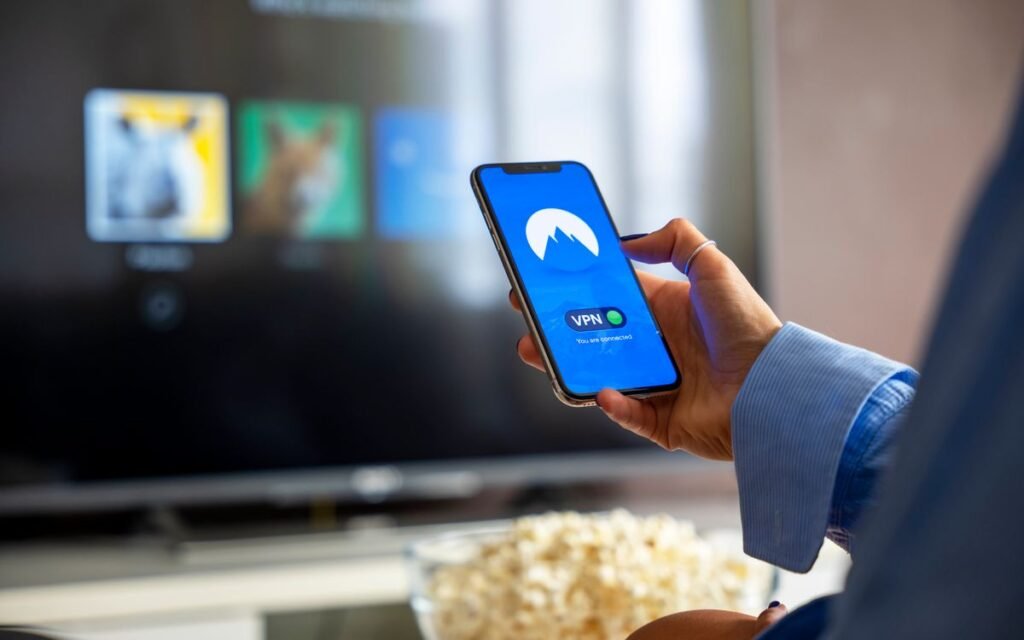
- Turn off the VPN. Google’s Chromecast help for casting from Chrome lists disconnecting from any VPN or proxy as a fix when devices don’t appear. It’s worth trying on the phone too.
- Update the Google Home app. Google’s help page for Android screen casting lists this as a fix.
- Restart all three. Google suggests restarting the router, the phone and the Chromecast.
- Check AP isolation. Some routers have a “client isolation” or “AP isolation” setting that stops devices talking to each other. Google says to turn it off.
- Update everything. Apple’s adapter help says to update iOS, and on Android, update the phone and the TV’s software from Settings.
If you suspect a neighbour is on your Wi-Fi and slowing the cast, our guide on checking who is using your Wi-Fi shows how to find and block them. And if a relative wants to join the network for the evening, here’s how to find your saved Wi-Fi password without digging through the router box.
💡 Pro tip
A stuttering video usually means a weak Wi-Fi signal near the TV, not a bad phone. Move the router closer or cast the video from the app instead of mirroring the whole screen.
Our Verdict: The Best Way for Each Home
✅ Our verdict
Use the method your TV was built for: Google Cast on Google TVs and Chromecast, Smart View on Samsung, AirPlay with Apple TV or an AirPlay TV. For long videos, cast from the app rather than mirroring. Buy a cable only after checking your phone supports video out.
My honest take: for most Indian families, the simplest fix for an old TV is a Chromecast-type dongle, not a cable. It works with every Android phone in the house, and iPhone users can still cast from YouTube and Netflix.
Also, before the guests arrive: a slideshow is a bad moment to discover the wedding photos only exist on one phone. Read our guide to backing up your festive photos and do it the same evening. And if your TV feels sluggish while casting, an old Android TV box might be the problem; here’s how to check a TV box for malware.
Frequently Asked Questions
How do I cast my phone to TV without Wi-Fi?
Use a cable. A USB-C to HDMI adapter works on iPhone 15 and later and Pixel 8 and later, and Samsung lists official HDMI adapters for DeX. Older iPhones need Apple’s Lightning Digital AV Adapter.
Why is my TV not showing in the cast list?
Usually because the phone and TV are on different Wi-Fi networks or bands. Put both on the same network, turn off any VPN, update the Google Home app and restart the router, phone and TV.
Can I cast an iPhone to an Android TV?
Mirroring an iPhone needs AirPlay, which Google TVs don’t use. You can still cast from apps that have a Cast icon, like YouTube and Netflix.
Why won’t Netflix play when I mirror or use a cable?
Apple says films and many streaming apps need HDCP copy protection, so an unprotected connection can show an error. Use the Cast or AirPlay button inside the app instead; that’s the route these apps are built for.
Does screen mirroring drain the battery?
Yes. Google’s help page says mirroring uses a lot of power and suggests Battery Saver. For long videos, keep the phone on a charger.
The Bottom Line
To cast phone to TV, match the method to your TV: Google Cast, Smart View or AirPlay, all on the same Wi-Fi network. If that fails, check the network name and band first; it fixes most “TV not found” problems.
Next step: try it once tonight, before the family gathering, so you’re not troubleshooting with twenty people watching.
Keep reading

 Read nextForgot Your Wi-Fi Password? See It on Android, iPhone or Laptop
 Read nextAndroid TV Box Malware: Google Bans Maker of 1.3M Infected Boxes
Sources
- Google Chromecast Help: Cast your Android screen (Android 8.0+, Google Home steps, microphone permission, battery)
- Google Chromecast Help: No compatible devices found when casting your Android screen (same Wi-Fi, update Google Home, restart)
- Google Chromecast Help: No Cast destination found (VPN or proxy, AP isolation)
- Google Pixel Help: Cast your screen with Quick Settings, wired display needs Pixel 8 or later
- Apple Support: Use AirPlay to stream video or mirror your iPhone screen
- Apple Support: Connect iPhone to a display with USB-C (supported models, 4K 60Hz over HDMI 2.0)
- Apple Support: Get help with Apple Digital AV Adapters (HDMI audio, HDCP, troubleshooting)
- Apple India: Lightning Digital AV Adapter
- Samsung India Support: Mirror your Galaxy phone to a Samsung TV with Smart View
- Samsung India Support: How to use Samsung DeX (HDMI adapters, Miracast TVs, 5 GHz)