You don’t need to reset your router or call your internet provider to find a forgotten Wi-Fi password. Any phone or laptop already connected to that network can show it or share it, usually in under a minute: Android through Settings, iPhone through the Passwords app, and Windows through Network settings.
Diwali guests are coming, and someone will ask. A QR code is much easier than reading out “Sharma@Airtel5G#2019” across the room, and one more trick works even when your phone has only the QR code. It’s in the Android section.
⚡ Key takeaways
- Android: Settings, Network & internet, Internet, your network, Share. You’ll get a QR code.
- iPhone: Passwords app, Wi-Fi, your network, tap the Password field. You can show a QR code from there too.
- Windows 11: Settings, Network & internet, your network’s Properties, then Show next to the password.
- Nothing connected? Check the router’s sticker, then your internet provider’s app or support.
- This is only for networks you own or have permission to use.
Why Your Devices Remember Your Wi-Fi Password
When a phone or laptop joins a network, it saves the password so it can reconnect later. You’ve probably got it stored on three or four devices at home, even though nobody remembers typing it.
That’s also the limit of this trick. Your device can only show a password for a network it has already joined. It can’t pull passwords out of thin air for your neighbour’s Wi-Fi, and apps that promise this are the ones I’d stay away from.

How to See the Wi-Fi Password on Android
Android’s menus differ slightly between Samsung, Xiaomi, Vivo, Oppo and Pixel, but the idea is the same.
Google’s Android help page lists these steps:
- Open Settings.
- Tap Network & internet, then Internet.
- Tap your Wi-Fi network, then Share.
- Unlock with your fingerprint, face or PIN if asked.
- A QR code appears. The other person scans it to join.
Smartprix’s guide adds that you can also copy the password from this screen on many phones, and that this works for networks you’re connected to now or have joined before. On Xiaomi’s MIUI or HyperOS, tapping the Wi-Fi network brings up the QR code.
If your phone shows only a QR code
This is the trick I mentioned. Wi-Fi QR codes contain the network name and password as plain text. So take a screenshot of the code, then scan it with Google Lens or a QR scanner app on another device. Most scanners display the contents, and you’ll see the password next to the network name.
⚠️ Watch out
That screenshot holds your password in readable form. Delete it from your gallery when you’re done, especially if your photos back up to the cloud or your kids use your phone.
 Also readNew Phone Setup: 9 Things to Do Before You Use It
How to Find the Wi-Fi Password on iPhone
iPhones get this right, and Apple’s newer system makes it easy. Apple’s iPhone guide says:
- Open the Passwords app.
- Tap Wi-Fi. You may need to open the categories first.
- Tap your network. If you’re connected, its name is at the top.
- Tap the Password field to reveal it.
- Tap Copy Password if you want to paste it somewhere.
Saved networks you’ve used earlier are also listed here. That’s handy if you can’t remember the office or relative’s Wi-Fi from the last time you visited.
Sharing from one iPhone to another
If your guest also has an iPhone, you may not need to reveal anything. Apple’s sharing steps:
- Keep your iPhone unlocked and connected to the network.
- On their device, they choose your Wi-Fi network.
- When your iPhone prompts you, tap Share Password, then Done.
Both devices need Wi-Fi and Bluetooth on and must be close to each other, with Personal Hotspot off, and you must have each other’s Apple Account email or phone number saved in Contacts. That last part is why this fails with people you’ve just met.
For an Android guest, or anyone not in your Contacts, use the QR option. Apple’s guide says you can open the Wi-Fi network and tap Show Network QR Code.
💡 Pro tip
Scan QR codes with your phone’s normal camera first. On most iPhones and Android phones, the camera recognises a Wi-Fi code and offers to join, so no separate app is needed.
How to See the Wi-Fi Password on a Windows Laptop
If your laptop is the only device that remembers the password, you’re still fine. Microsoft’s Windows Wi-Fi guide gives these Windows 11 steps:
- Open Settings, then Network & internet.
- Open the Properties page for your connected Wi-Fi network.
- Select Show next to Wi-Fi network password.
For a network you’re not on at the moment, go to Manage known networks, pick the network and select Show there.
The older Windows route
On Windows 10, the classic path still applies: open Network and Sharing Center, click your Wi-Fi name next to Connections, open Wireless Properties, go to the Security tab and tick Show characters. The password appears in the Network security key box.
The Command Prompt option
Some answers on Microsoft’s Q&A forum suggest a command for seeing saved networks. Open Command Prompt and type these two commands, one after the other:
netsh wlan show profilesnetsh wlan show profile name="YourWiFiName" key=clear
Look for “Key Content” in the output. Use this only on your own PC or one you’re authorised to manage.

Quick comparison: which method should you use?
| Device | Where to look | Shows the password as text? | Share with QR? |
|---|---|---|---|
| Android | Settings, Network & internet, Internet | Often, depending on the phone | Yes |
| iPhone | Passwords app, Wi-Fi | Yes | Yes |
| Windows 11 | Settings, Network & internet, Properties | Yes | Not covered by the help page we checked |
| Windows 10 | Network and Sharing Center, Wireless Properties | Yes | No |
My pick? For guests, a QR code wins, because no one has to type anything. For fixing a smart TV or a printer that needs typing, you’ll want the text, so use the iPhone or laptop method.
Slow TV after you’ve reconnected? Try our smart TV speed fixes.
No Device Connected? Check These Instead
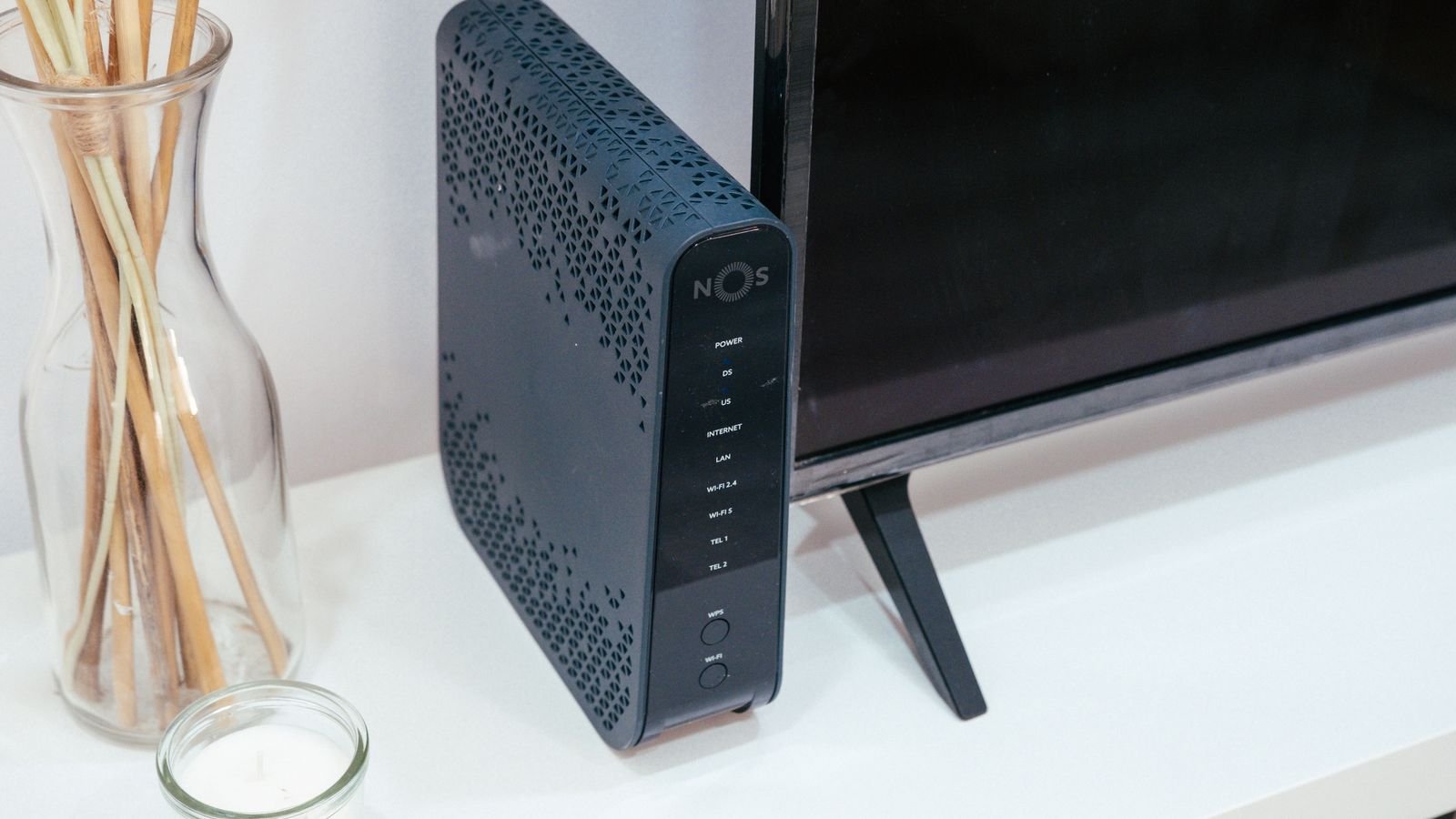
If nothing at home remembers the password, it’s time for the router itself.
- Look at the sticker. Most routers list the default network name and password on a label on the back or bottom. It’ll work if nobody ever changed it.
- Check your installation papers. Your internet provider’s setup card sometimes has these details.
- Use your internet provider’s app or support. Many broadband providers let you manage Wi-Fi settings through their app, or you can call and ask.
- Reset the router as a last resort. Holding down its reset button restores factory settings, but every device must then reconnect, and any custom settings go. Note the default details first.
⚠️ Watch out
Windows can show the saved Wi-Fi password, but it can’t recover your router’s admin login. That’s a different password, used to enter the router’s settings page. Don’t mix the two up.

Be Careful Who You Share Your Wi-Fi Password With
Once someone has your password, their device stays on your network until you change it. That’s fine for family, and less so for the plumber, the tutor and every cousin’s friend.
- Use a guest network if your router offers one. Guests get internet without seeing your other devices.
- Change the password every so often, particularly if you’ve shared it widely or the sticker default is still in use. Pick something long but easy to say.
- Ignore “Wi-Fi password hacker” apps on the Play Store or in WhatsApp forwards. Don’t install them. At best they’re ad-filled, and at worst they’re after your data. Our hacked phone checklist shows what to do if one has already got onto a phone.
✅ Our verdict
Don’t reset anything yet. Check a connected phone or laptop first, as that solves it nearly every time. Keep a QR code ready for guests this Diwali, and if you’ve been using the sticker password for years, change it to something only your family knows.
Frequently Asked Questions
Can I see my Wi-Fi password on Android without root?
Yes. On most modern phones, go to Settings, Network & internet, Internet, tap your network, then Share. You’ll see a QR code, and many phones also show or let you copy the password.
Where are Wi-Fi passwords stored on iPhone?
In the Passwords app, under Wi-Fi. Saved networks are listed there, and tapping the Password field reveals the password.
Can I find someone else’s Wi-Fi password with an app?
Not legitimately. Your device can only show passwords for networks it has already joined. Apps claiming otherwise are best avoided, and using someone’s network without permission is not OK.
How do I share Wi-Fi without giving the password?
Use a QR code. Scanning connects the guest without you reading anything out, although the code does contain the password. A guest network is safer if your router has one.
What if I reset my router?
It goes back to the name and password on its sticker, and all your devices must reconnect. Custom settings are lost too, so try the other methods first.
The Bottom Line
A forgotten Wi-Fi password is rarely lost. It’s sitting on a device you already own, one or two taps away in Settings or the Passwords app. Try it now on your own phone, screenshot your QR code just before guests arrive, and delete the screenshot when they’ve gone.
Keep reading
Read nextNew Phone Setup: 9 Things to Do Before You Use ItRead nextPhone Safety for Parents: 9 Settings to Fix on Your Diwali Visit Read nextIs My Phone Hacked? 9 Checks for Android and iPhone Users
Sources
- Google Android Help: share a Wi-Fi network with a QR code
- Apple iPhone User Guide: find and share your Wi-Fi password
- Apple Support: share your Wi-Fi password from your iPhone or iPad
- Microsoft Support: connect to a Wi-Fi network in Windows
- Microsoft Q&A: where the Wi-Fi password is kept in Windows
- Smartprix: sharing a Wi-Fi password from Android and iPhone