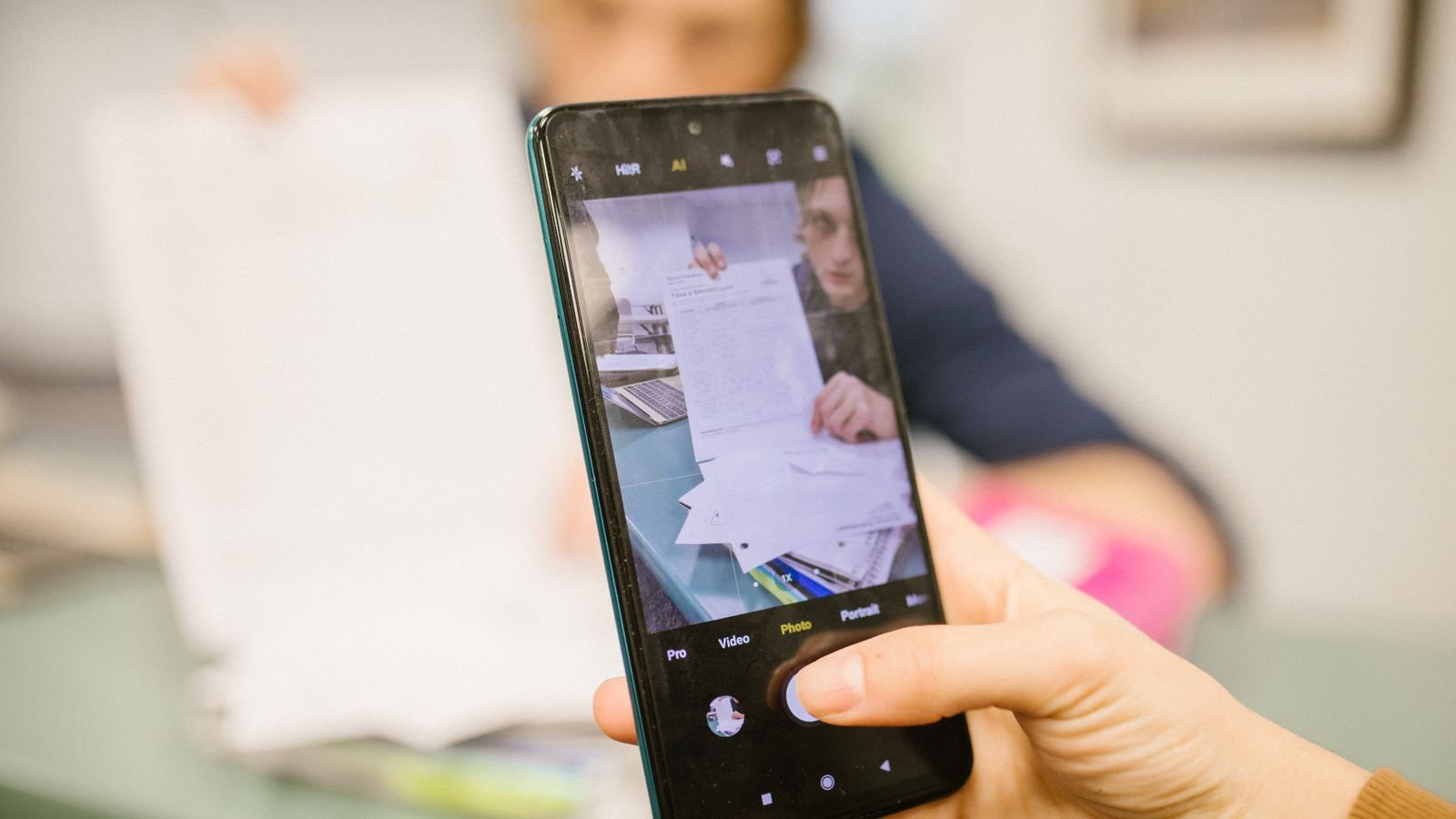
You don’t need CamScanner or any other scanner app. Google Drive, Files by Google, the iPhone’s Notes and Files apps, and Samsung’s camera can all scan documents into a clean, cropped PDF for free.
The scanning is the easy part. The real headache is the portal that rejects your file for being too big, and the fix for that is in section 5. There’s also a good reason to keep your Aadhaar and PAN scans away from random scanner apps, which section 6 explains.
⚡ Key takeaways
- Android: open Google Drive, tap the Camera button, and save as PDF. Files by Google has a Scan button that saves PDFs automatically.
- iPhone: Notes (paperclip > Scan Documents) or Files (More > Scan Documents). Drag the corners, tap Keep Scan, done.
- Samsung Galaxy: turn on Document scan in Camera settings, point at the page and tap Scan.
- File too big? Use the greyscale filter, scan only the pages asked for, and compress only as a last step. Indian e-Visa document uploads, for example, must be PDFs between 10 KB and 500 KB.
- Skip random scanner apps for ID documents. CamScanner once shipped a malicious module (Kaspersky, 2019) and has been blocked in India since June 2020.
Android: Scan Documents With Google Drive or Files by Google
Most Android phones already have Google Drive installed. Start there. It lets you pick PDF or JPG and choose the folder before you save, which saves a lot of digging later.
Google Drive steps
Google’s own help page lists these steps:
- Open the Google Drive app and tap the Camera button at the bottom right.
- Point the camera at the page. A blue outline shows what will be cropped.
- Take the photo. You can switch between Manual and Auto capture.
- Fix it up: Crop & Rotate, Filter (colour or greyscale), Clean (removes stains, fingers and marks), Add for another page, Retake or Delete.
- Tap Done, type a file name, and choose .pdf or .jpg.
- Tap Location to pick a Drive folder, then Save.
Scan often? Add the Drive scan widget to your home screen. It opens the scanner straight away and saves into the folder you chose.
Files by Google steps
Prefer to keep the file on the phone instead of in Drive? Open Files by Google and tap Scan at the bottom right. You get the same blue outline, Auto or Manual capture, and the same crop, filter, Clean and add-page tools.
Google says these scans are saved automatically as PDFs. You’ll find them under Recents, and in a Scanned folder inside Downloads (Documents > Scanned).
iPhone: Scan Documents in the Notes or Files App
iPhones have had a document scanner built in for years. Plenty of people never notice it, because it hides behind a paperclip icon. Apple’s support page (updated February 2026) gives two routes.
Using Notes
- Open Notes and create a new note.
- Tap the paperclip (attachment) button, then Scan Documents.
- Point the camera at the page. On iOS 26 you can also turn on the flash or pick an image filter.
- In Auto mode the scan happens by itself. For a manual capture, tap the shutter or press a volume button.
- Drag the corners to fit the page, then tap Keep Scan.
- Scan the next page, or tap Done.
Need to sign a form? Tap the scanned document in the note, tap the Markup button, then Add > Signature. Apple lets you place a saved signature or draw one with your finger.
Using Files (best for PDFs)
Open Files, tap More (the three dots), then Scan Documents. The capture and corner steps are the same as in Notes. At the end you pick a location and tap Save.
Which should you use? Files, if the goal is a PDF you’ll upload from Safari or email. You don’t have to dig the scan back out of a note, because it’s already a file sitting in the folder you chose.
💡 Pro tip
Before you upload, open the saved PDF and zoom in on the smallest text: the Aadhaar number, the date of birth, the photo. A portal reviewer will reject a blurry ID, and it’s faster to rescan now than to redo the whole application next week.
 Also readAre DigiLocker Documents Valid? Where Your Phone Copy Works
Samsung Galaxy: Scan Documents Straight From the Camera
Galaxy owners can skip apps entirely. Samsung’s support pages say the Camera app can detect a document and scan it for you, but the option needs to be switched on first on some models.
Turn it on
Samsung’s Australian support page gives the path: open Camera, tap the menu, go to Settings > Scanning, and turn on Document scan. Menu names can differ slightly by model and One UI version, so look for “Scan” or “Scanning” in Camera settings if yours doesn’t match.
Scan a page
- Open Camera and line up the page in the viewfinder.
- When the Scan option appears, tap it and let the phone finish.
- Tap Save, or Retake if it came out wrong.
Samsung says the scan automatically removes shadows and hands and straightens the document, and the result lands in Gallery. To turn it into a PDF on older Galaxy phones, Samsung points you to Samsung Notes, which can import and export PDFs.
Galaxy S26: multi-page PDFs built in
A Samsung Members India moderator’s post says the Galaxy S26 series adds Add Scan for multi-page documents and a Save as PDF button. The same post mentions a scan resolution setting with default, high and low options, which helps with file size (more on that below). The post says other Galaxy models will get this later, with no date yet.
Which Scanner to Use for KYC, Job Forms and Visa Uploads
All of these tools do the same basic job. The difference is where the file ends up and whether you get a PDF without extra steps.
| Phone | Best built-in option | Saves as PDF directly? | Where the file goes |
|---|---|---|---|
| Any Android | Google Drive scan | Yes (PDF or JPG) | A Drive folder you choose |
| Any Android | Files by Google | Yes, automatically | Downloads > Documents > Scanned |
| iPhone | Files app | Yes | Any folder in Files or iCloud Drive |
| iPhone | Notes app | Inside a note | The note (share it from there) |
| Samsung Galaxy | Camera Document scan | Gallery image; Save as PDF on S26 | Gallery |

Tips for a clean scan
- Put the page on a dark, plain surface like a table. White paper on a white bedsheet confuses the edge detection.
- Use daylight from a window, not the tube light directly overhead, which throws your phone’s shadow on the page.
- Hold the phone flat above the page, not at an angle. Samsung’s community guide says keeping the document and camera parallel gives the best result.
- For a two-sided document like an Aadhaar card, scan the front, tap Add, scan the back. One PDF, two pages.
Merging pages
The simplest way to merge pages is to scan them together. Drive’s Add button, Files by Google’s add-page option, the “add more scans” step in iPhone Notes and Files, and Add Scan on the Galaxy S26 all put every page into one document. If a portal wants marksheets for three years in one file, scan all three in one go instead of making three PDFs and hunting for a merge tool later.
PDF Too Big for the Portal? How to Shrink It
This is where most people get stuck. Every portal sets its own limit, and they’re strict. The Indian e-Visa document upload page, for example, accepts PDFs only, with a minimum of 10 KB and a maximum of 500 KB. Read the exact line on your portal’s upload page before you scan, because a limit you remember from a friend’s application may not be the one you face.
Shrink it at the scanning stage
Start with the cheapest fix. In Google Drive or Files by Google, use the greyscale filter for text documents. A greyscale or black-and-white page usually saves much smaller than a full-colour photo of the same page.
Next, scan only what’s asked for. If the form wants the photo page of your passport, don’t send all of it. And crop tightly so you’re not saving a border of tabletop.
On the Galaxy S26, the scan resolution setting mentioned in Samsung’s community post can be set to low for documents that are mostly text.
Compress as a last step
If the file is still over the limit, Adobe’s Acrobat Reader app has a Compress option with Low and High levels. Adobe says High gives the smallest file and suits text-heavy PDFs, while Low keeps more quality for documents with important images. Adobe’s Android guide describes it as free, though you need to sign in with an Adobe account.
⚠️ Watch out
Online “compress PDF” websites upload your file to someone else’s server. That’s fine for a college notice. For an Aadhaar, PAN, passport or bank statement, think twice, and only use a service you’d trust with a photocopy of that document. Compressing too hard can also make the text unreadable, and a reviewer will reject that just as fast.
Is the portal asking for a size minimum too? A tiny, over-compressed file can fail that check. The e-Visa page’s 10 KB floor is a good example.
 Also readApp Permissions: Which Apps Can Use Your Camera, Mic and Location
Skip Random Scanner Apps, and Use DigiLocker Where You Can
Why do we keep saying “no CamScanner”? Because ID scans are exactly the kind of file you don’t want sitting in an app you can’t vouch for.
What happened with CamScanner
In August 2019, Kaspersky reported that recent Android versions of CamScanner, an app with more than 100 million downloads on Google Play, carried a malicious module inside an advertising library. Kaspersky detected it as Trojan-Dropper.AndroidOS.Necro.n and said it could download further modules that show intrusive ads or sign users up for paid subscriptions. Google pulled the app from Play after the report, and the developers removed the code.
Kaspersky’s takeaway still holds: every app is “just one update away” from a major change. Then on 29 June 2020, the IT ministry blocked 59 apps with Chinese links, and Scroll’s report lists CamScanner among them.
Honestly, CamScanner is just the famous example. Any scanner app gets camera and storage access and then sees your most sensitive papers. The scanners built into Google Drive, Files by Google, iPhone and Samsung come from companies you already trust with your phone.
Every extra app is one more company with a copy. Check what your current apps can access with our guide to camera, mic and location permissions.
Where DigiLocker beats a scan
For many official documents, a scan isn’t even the best option. Rule 9A of the Digital Locker rules lets departments issue, and requesters accept, digitally signed documents from your DigiLocker account “at par with the physical documents”. That covers documents issued into DigiLocker, like your Aadhaar, driving licence or marksheets from linked boards. A scan you upload yourself is just a scan.
So if a bank, employer or college accepts DigiLocker, share the issued document from there instead of scanning paper. Our DigiLocker guide explains which documents count and where.
Keep your own scans tidy
- Put ID scans in one folder, not loose in your Downloads or WhatsApp chats.
- Delete scans once the application is done if you don’t need them again. Short on space? See what to delete first when phone storage is full.
- If the scans live in Drive or Gmail, protect the account with two-step verification.
- Got a call or WhatsApp link asking for ID scans to “update KYC”? Treat it as a red flag and check with your bank through its official app or branch first.
✅ Our verdict
Skip the third-party scanner app. On Android, Google Drive scan does everything most people need; on iPhone, use the Files app; on a Galaxy, the camera already scans. Use greyscale for text documents, check the portal’s size limit before you start, and share from DigiLocker wherever it’s accepted.
Frequently Asked Questions
How do I scan documents to PDF on Android without an app?
Open Google Drive, tap the Camera button at the bottom right, capture the page, then tap Done and choose PDF as the format. Files by Google also has a Scan button that saves scans as PDFs automatically. Neither needs a separate scanner app.
How do I scan a document on iPhone?
Open the Files app, tap More, then Scan Documents. Point the camera at the page, adjust the corners, tap Keep Scan, then Done, and pick where to save it. You can also scan from Notes using the paperclip button.
Can I scan both sides of an Aadhaar card into one PDF?
Yes. Scan the front, tap Add (Google Drive) or keep scanning (iPhone), then scan the back before you tap Done. Both pages are saved in a single document.
How do I reduce the size of a scanned PDF?
Rescan with the greyscale filter, scan only the pages required and crop tightly. If it’s still too big, Adobe Acrobat Reader’s Compress option has a High level for the smallest file. Avoid uploading ID documents to unknown online compressors.
Is CamScanner safe to use in India?
CamScanner has been blocked in India since June 2020, when the IT ministry blocked 59 apps. Before that, Kaspersky found a malicious module in some 2019 Android versions. Your phone’s built-in scanner does the same job.
The Bottom Line
You can scan documents on almost any phone in India today without installing anything new: Google Drive or Files by Google on Android, Files or Notes on iPhone, the camera on a Galaxy. Check the portal’s size limit first, scan text documents in greyscale, and keep the files in one folder you control. Tonight, open your scanner once and scan the two documents you upload most, so they’re ready the next time a form asks.
Keep reading
Read nextAre DigiLocker Documents Valid? Where Your Phone Copy Works
 Read nextGmail Storage Full? Clear Space Without Losing Mails You Need
 Read nextLock Apps on Android and iPhone Without a Third-Party App
Sources
- Google Drive Help: Scan documents with Google Drive (Android)
- Files by Google Help: How to scan documents with Files by Google
- Apple Support: How to scan documents on your iPhone or iPad
- Samsung US Support: Scan and edit documents on your Galaxy phone or tablet
- Samsung Australia: Scan QR codes, text and documents on Galaxy (Camera settings > Scanning)
- Samsung Members India: Document Scan on the Galaxy S26 series
- Indian e-Visa: Document upload (PDF, 10 KB to 500 KB)
- Adobe: How to compress a PDF on Android
- Kaspersky: Malicious Android app had more than 100 million downloads in Google Play (CamScanner, 2019)
- Scroll: Centre blocks 59 apps with Chinese links, including CamScanner (June 2020)
- SCC Online: Rule 9A, Digital Locker documents at par with physical documents