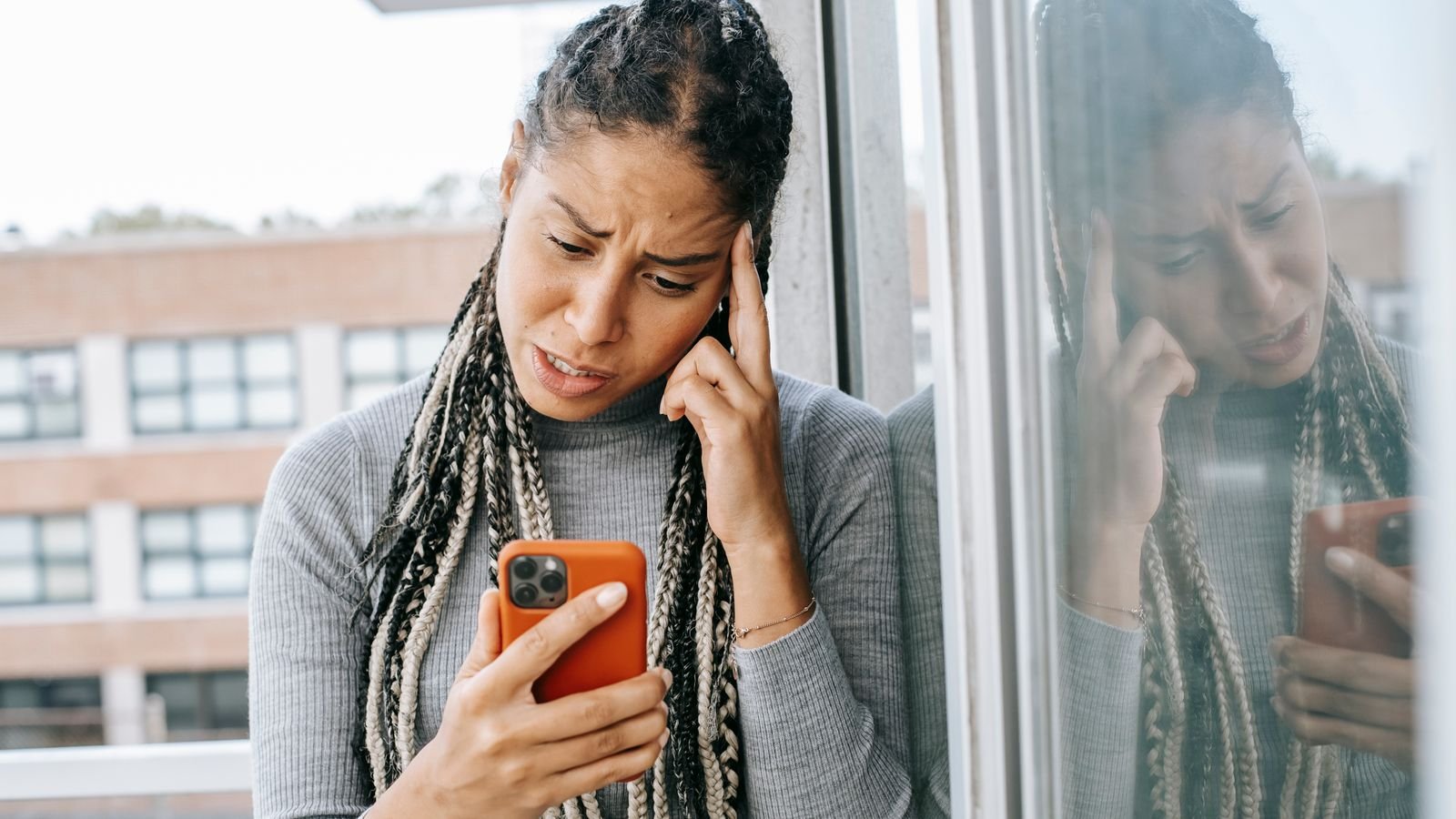
WhatsApp storage full again? You can usually win back several GB in ten minutes without deleting a single message, because the space is eaten by media, not text. The trick is to delete the right things: big videos, forwarded clips and group photos you’ll never open again.
Then there’s the part that stops it filling up next week. Two settings handle that, and most people have never touched them. They’re in section 5.
⚡ Key takeaways
- Fastest win: Settings > Storage and data > Manage storage, then delete files larger than 5 MB and items forwarded many times.
- Your messages stay: clearing media from a chat keeps the text. You can also keep starred items.
- Stop the refill: turn off media auto-download on mobile data, and turn off Media visibility for noisy groups.
- Backup is separate: deleting from your phone doesn’t shrink your backup until you back up again.
- Careful: files deleted through Manage storage can’t be downloaded again from that chat.
Why WhatsApp Storage Gets Full So Fast
Text messages take almost no space. Media is the problem: good morning images, wedding videos, festival greetings, PDFs from the school group and voice notes from family. During Diwali week, one greeting video can land in five groups and get saved five times.
WhatsApp’s help page on freeing up storage splits it into two kinds:
- Device storage: space on your phone used by WhatsApp media and files.
- Backup storage: space used by your chat backup, in WhatsApp cloud storage, Google storage (Android) or iCloud (iPhone).
They’re separate. Deleting media from your phone frees phone space straight away, but your backup still holds it until the next backup runs. Your phone and the app may also show different numbers, according to the same page, because backups are stored more efficiently.

Step 1: See What’s Eating Your WhatsApp Storage
Start with the big picture.
- Open WhatsApp Settings (on iPhone, tap your profile picture).
- Tap Storage and data > Manage storage.
- The space WhatsApp uses on your phone shows at the top.
Below that, you’ll see your chats listed by how much media they hold. In most Indian phones, the top three are family groups, a school or society group and one forwarding-happy friend.
You can also check a single chat. Open it, tap the chat name, then Manage storage to see that chat’s media sorted from largest to smallest.
💡 Pro tip
Sort by Largest first. A single 300 MB video from a wedding group can free more space than deleting a thousand photos.
 Also readGoogle Photos Storage Full? Free Up Space Without Paying ₹130
Step 2: Delete Big Files and Forwarded Junk
WhatsApp gives you two quick filters, and they do most of the work.
Files larger than 5 MB
On Android, WhatsApp’s help page says: go to Settings > Chats > Chat backup > Manage your storage, tap Review and delete media, then tap Larger than 5 MB. Select what you don’t need and delete. On iPhone, sort the media list by Largest to get the same result.
Items forwarded many times
The help page also suggests deleting items that have been “forwarded many times”. These are usually viral videos and greeting images that came through long chains. You almost certainly don’t need a saved copy.
| What to delete | Where | Typical space saved | Risk |
|---|---|---|---|
| Videos over 5 MB | Larger than 5 MB filter | High | Check for family videos first |
| Forwarded many times | Manage storage list | Medium | Very low |
| Old group photos and GIFs | Per-chat Manage storage | Medium | Low |
| Documents (PDFs) | Per-chat Manage storage | Low to medium | Keep bills, tickets, ID copies |
| Stickers | Clear chat media | Low | None |
When you delete, the app may offer Delete any copies (Android) or Delete items and any copies (iPhone). Pick it, because duplicates of the same video in three groups each take space.
The Catch: What You Delete Is Gone From That Chat
Here’s the part people regret. The help page is clear: deleting an item this way “permanently deletes the item. You won’t be able to redownload it from the chat it was in.”
⚠️ Watch out
Before a big clean-up, save the photos and videos you care about. Back up family videos to Google Photos or your computer first, then delete from WhatsApp. Deleting only removes the file for you; others in the chat can still see it.
Two more things WhatsApp flags:
- Copies may survive in your gallery. If WhatsApp saved a photo to your phone’s gallery, deleting it in WhatsApp may leave that copy behind. Check your gallery’s WhatsApp folder too.
- Starred items are protected if you want. When clearing a chat, you can choose to delete everything except starred messages.
If you’ve starred important things like tickets, Aadhaar copies or a doctor’s prescription PDF, keep the starred option on.

Step 3: Stop WhatsApp Filling Up Again (2 Settings)
This is the open loop from the start. Cleaning up is pointless if the same groups refill your phone in a week.
Setting 1: Media auto-download
WhatsApp’s auto-download help page explains the controls:
- Go to Settings > Storage and data.
- Under Media auto-download, tap When using mobile data, When connected on Wi-Fi and When roaming.
- Untick photos, audio, videos and documents where you don’t want automatic downloads.
Our pick: no videos on mobile data, nothing when roaming. Photos on Wi-Fi only if you like. Media you skip still arrives in the chat; you just tap it to download the ones you actually want.
Setting 2: Media visibility
By default, the app automatically saves audio, video and photos to your phone, with Media visibility on by default. Its media visibility guide shows two fixes:
- For all chats: Settings > Chats > turn off Media visibility.
- For one noisy group: open the group, tap the group name, tap Media visibility > No > OK.
The second one is the real winner. Keep it on for your spouse and parents, and switch it off for the 200-member society group.
 Also readWhatsApp HD Photo Setting: Stop Blurry Diwali Pics in 1 Tap
Step 4: Fix Backup Storage and Phone Storage
Sometimes the warning isn’t about WhatsApp media on your phone, but about your backup or the phone itself.
Your WhatsApp backup
If you back up to WhatsApp cloud storage, go to Settings > Chats > Chat backup > Manage your storage to see usage and review media there. The help page says you can upgrade to 100 GB with a WhatsApp Plus subscription, or to larger Meta One plans, if you really need more. Try deleting first. Remember to tap Back up after a clean-up so the backup shrinks too.
Deleting a backup completely is permanent, so only do that if you no longer need old chats. If you’re moving to a new phone, read our WhatsApp chat transfer guide first.
The rest of your phone
On Android, Google’s free up space guide suggests: Settings > Storage > Free up space, turning on Smart Storage to clear backed-up photos, and archiving apps you rarely use from the Play Store settings. Some steps need Android 14 or later. Backed-up Google Photos can be removed from the phone and still viewed online, which our Google Photos storage guide explains.
Our Verdict: Fix WhatsApp Storage Full in 10 Minutes
✅ Our verdict
Don’t delete chats when WhatsApp storage is full. Delete media: start with files larger than 5 MB and items forwarded many times, then clear old media from your biggest groups while keeping starred items. Then turn off video auto-download on mobile data and Media visibility for noisy groups, so you don’t have to do this again next month.
If your phone is older and still struggles after this, it may simply be too small for today’s apps. Our guide on reusing an old phone helps you decide what to do with it.
Frequently Asked Questions
How do I clear WhatsApp storage without deleting chats?
Go to Settings > Storage and data > Manage storage and delete media, not chats. Or open a chat, use Clear chat, and choose to clear only media files. Your text messages stay.
Why is my WhatsApp storage full even after deleting?
Your backup only updates after the next backup, and copies may still sit in your phone’s gallery. Run a backup and check the WhatsApp folder in your gallery.
Does clearing WhatsApp storage delete photos from the gallery?
Not always. WhatsApp says deleted items might still be saved on your device. On Android, the delete option may offer to remove media from the gallery too.
How do I stop WhatsApp saving photos to my gallery?
Turn off Media visibility in Settings > Chats, or turn it off for one chat from the chat’s info screen.
What does “Larger than 5 MB” mean in WhatsApp?
It’s a filter in WhatsApp’s media review screen on Android that lists every file bigger than 5 MB, so you can delete the biggest space-eaters first.
The Bottom Line
WhatsApp storage full is almost always a media problem, not a chat problem. Spend ten minutes on the 5 MB filter and forwarded items, save what matters first, then change the two settings that stop the refill. Do it tonight, before the Diwali greeting videos start.
Keep reading
Read nextGoogle Photos Storage Full? Free Up Space Without Paying ₹130 Read nextTransfer WhatsApp Chats to a New Phone: All 4 Ways Explained
Sources
- WhatsApp Help Center: How to free up storage on WhatsApp (Android and iPhone)
- WhatsApp Help Center: How to configure auto-download
- WhatsApp Help Center: How to stop WhatsApp from saving media to your phone
- Google Android Help: free up space on your Android device